Every video model
One workspaceCut the subject, swap the scene
Remove a video background in three steps
- 01
Open Morphic
Sign up and start creating on a free-flowing, infinite visual canvas.
- 02
Upload your video
Drop in the clip. The AI finds the subject and separates it from the background.
- 03
Keep it clean or replace it
Export the cutout as is, or describe a new scene to fill in behind.
Use cases
Product shots without a set
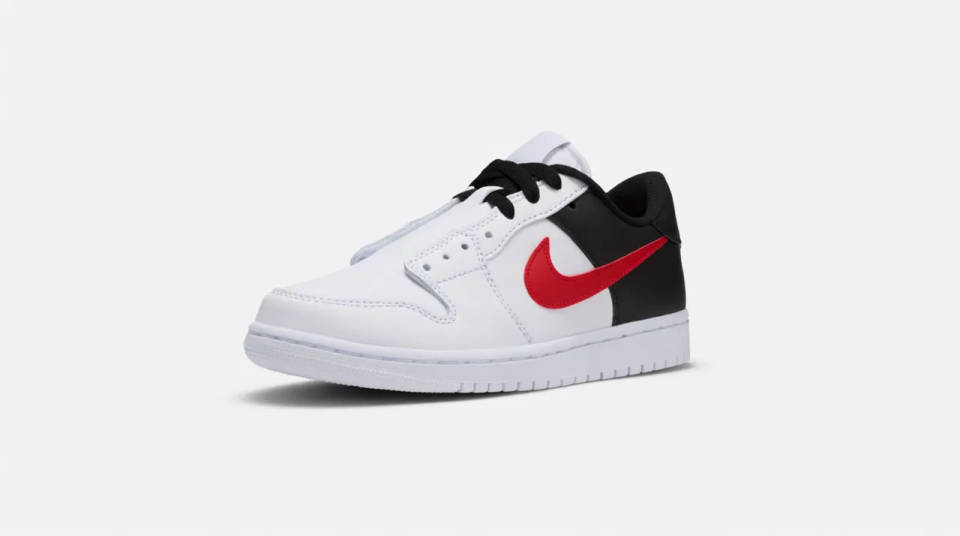
A single clip of a product spinning on a table can lose the table. Cut the background, keep the item crisp, and the same footage sits cleanly on a store page, an ad, or a lookbook. No booking a studio and no repainting a wall between shots.
Talking head, tidy backdrop
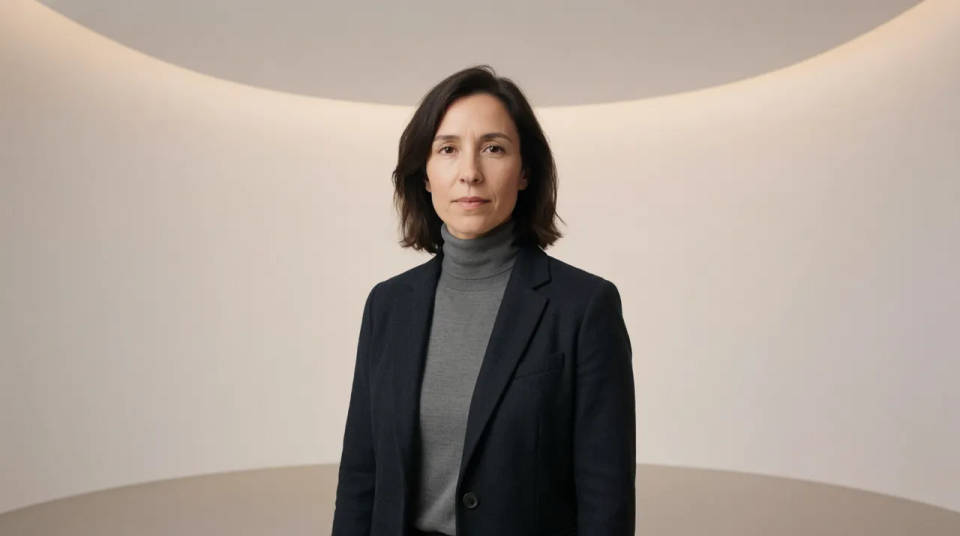
Footage shot at a kitchen table reads as amateur because of what is behind the speaker, not the speaker. Remove the room and the same take looks composed. Leave the space neutral, or describe a set that fits the topic.

Subject on a fresh location
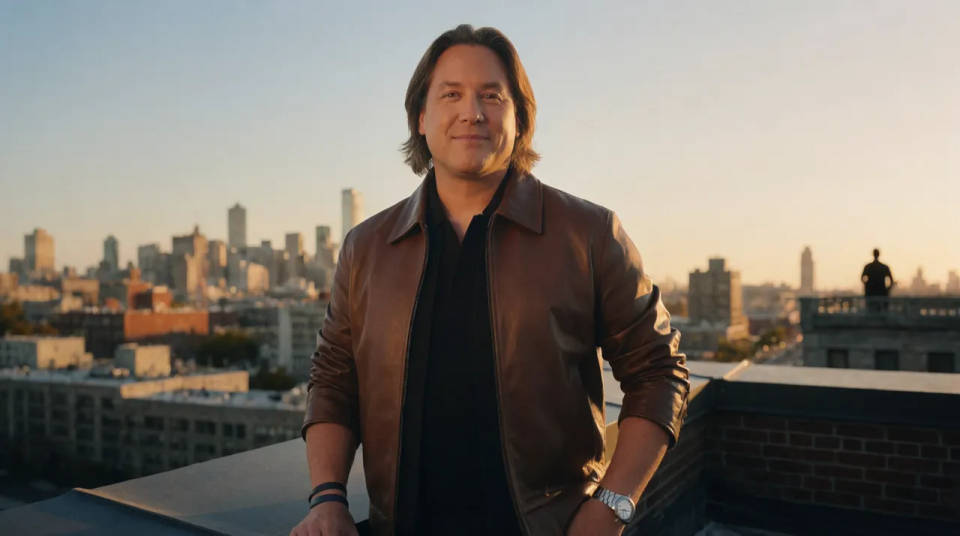
Once the background is out, describe where the subject should be instead. A presenter filmed indoors can stand on a city rooftop or in a plain colour field, matched to the light on the subject, without a location shoot or a travel budget.
Consistent look across a series
A channel or campaign wants every clip to share one background. Cut the varied rooms your footage was shot in and place each subject on the same described scene, so a run of videos filmed on different days reads as one set.
Cinematic scene
One image to a 9-scene cinematic video.
Time-freeze effect
Cinematic time-freeze short film for any scene
Short film creator
Go from any idea to a finished short film with scenes, visuals, video, and music.
Runway walk
Get a runway walk video clip with virtual try-on built in from a garment photo and a model photo.
Renovation timelapse
Photo of any real-estate becomes a cinematic renovation timelapse video with construction SFX and music.
Motion transfer
Pair a character image with a reference video. Your character picks up that exact motion.
All on Morphic
From raw clip to clean subjectModels
Kling 3.0, Seedance 2.0, Veo 3.1, and more, ready to fill a new background behind your subject.
AI green screen
Skip the physical backdrop. Cut the subject and describe the scene you want behind it instead.
Background remover
Doing the same job on a still image? Cut the background out of a photo in one step.
Video to video
Restyle, edit, or transform an existing clip with a prompt, beyond swapping the background.
