What you need
- A finished video with speech, up to 10 minutes per dub. Split anything longer at scene breaks.
- The rights to it, and the consent of the people whose voices you dub.
- A Morphic paid plan. The lip-synced dub is on every paid plan; on the free plan Morphic dubs the audio track only.
- Optional: a list of names and places to keep exactly as they are, and a voice from Morphic's voice catalog for any speaker you would rather cast.
How do I dub a video with AI?
Lock the cut and add the video
Dub the finished edit, so a later change to the picture does not send you back for another dub. Open the Morphic Dub tool and add your video, or attach it in a Copilot chat. Each dub takes one video of up to 10 minutes, so cut a longer one at scene breaks in Compose first.
Choose the language, the names and the voices
Pick one target language. Each dub is one language, so three markets are three dubs. In a Copilot chat you can also list the words to keep, for example "Dub Video 1 into French and keep the names Odile and Bram". By default every speaker keeps their own voice, one voice per person across the clip. To choose the voices yourself, ask Copilot to cast a voice from Morphic's voice catalog for each speaker.
Approve the run before it is charged
Set the Copilot chat to 'Ask before generating'. In that mode the dub is not charged until you approve it, and cancelling at that step is free. A dub is charged on the length of the source video: an estimate is taken when it starts and settled to what the run used, and a failed run is refunded.
Wait, review and export
Morphic Dub is the careful dub: a run takes longer than the video itself, and Morphic tells you the expected wait before it starts. When it lands, listen through once with the original beside it. Each speaker should sound like themselves, and the music should sit where it was. If a line needs another pass, re-dub its scene. Then ask Copilot for subtitles in the new language, put a long video back in order in Compose, and export.
One scene, dubbed into two languages
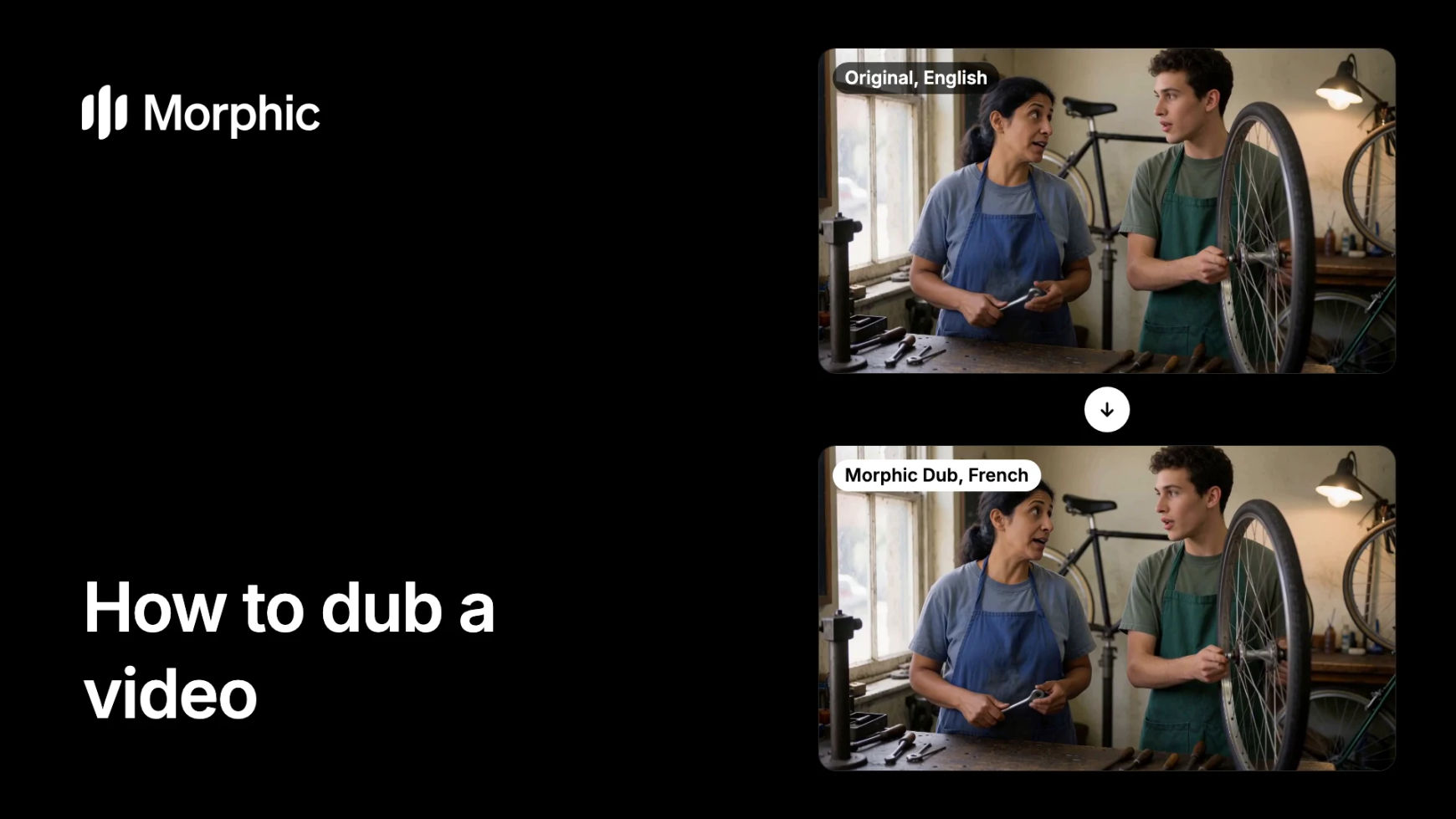
Start with the English original, then switch to the dub. The mechanic and her apprentice keep their own voices and the radio and the ticking wheel stay in the mix. The clips here are shown without sound.
Bicycle workshop, English to French
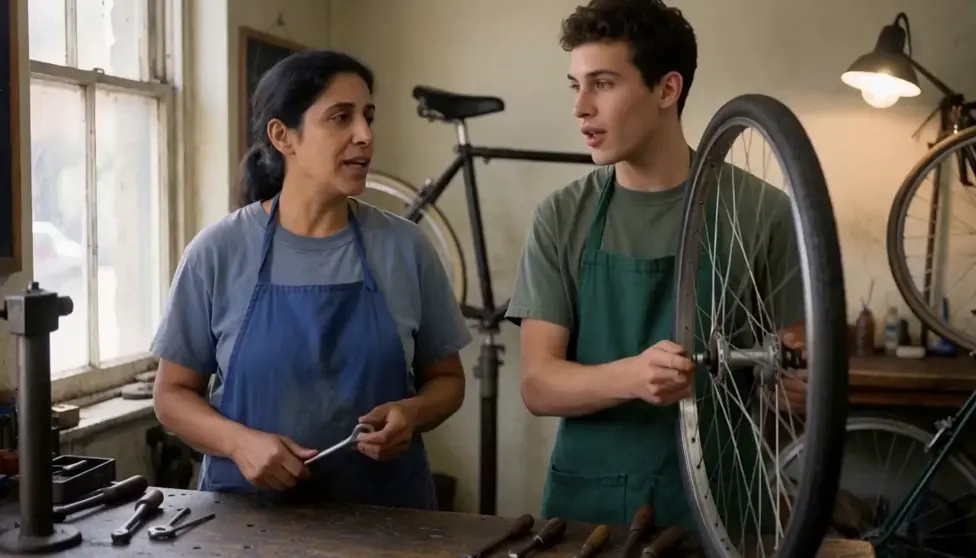
Dubbed into French: two voices, still their own, with the lips following the new words on each close-up.
Bicycle workshop, English to German
Dubbed into German as a second run on the same cut: the same two voices, the same timing, the radio still playing underneath.
Tips and common mistakes
- Budget per language. A studio dub books actors, a booth and a mix for each language. Here each language is one more run on the same cut, charged on its length, with your speakers still in their own voices. Dub the markets you need first.
- Test one scene first. Dub a short scene with music and several voices before a whole film or series, and have a native speaker listen.
- Say the names up front. Character names, brand names and places are the words a translation most often bends. List them in your request.
- Mind the text in the frame. The dub changes the speech and the speakers' lips. Titles, signs and on-screen captions stay in the original language, so subtitle them or replace the shots.
- Expect the plain language. Morphic Dub has no regional accents: a request for Canadian French comes back in French.
- Know where the lips change. Lips are redrawn on close-ups of the person speaking. Narration and off-screen lines are re-voiced with the picture left as it is.
- Plan around the wait. A dub takes longer than the footage, so set delivery dates with that in mind.
- Review as a team. A native speaker in your workspace can pin a note to the exact frame on the Compose timeline that needs another listen.
Dubbing guides for each kind of video
- A short film or an episode. Split it at scene breaks and dub each part, as in how to dub a short film.
- A YouTube video. Dub your own channel in your own voice with how to dub a YouTube video.
- A translation with subtitles. How to translate a video covers the dub and the subtitle file together.
- A scene with several people. See how to dub a scene with multiple speakers for casting and review.
- A line that came back wrong. How to fix one line in a dubbed video walks through the re-dub.
- Ads and films at volume. Brand teams start at multilingual ad dubbing; studios and distributors at film dubbing.
- A specific language pair. Browse dubbed examples by language pair, or try the AI video dubbing tool page.
FAQs
Open the Morphic Dub tool, add the video and pick the language you want. Morphic Dub translates the speech, re-voices each speaker in their own voice, syncs their lips on close-ups and keeps the original music and sound effects. Review the dub, add subtitles and export.
A wide range, including Spanish, French, German, Italian, Portuguese, Japanese, Korean, Hindi, Tamil and Arabic. Each dub is one target language, and it is the plain language without regional accents.
Yes. Each speaker is re-voiced in their own voice, one voice per person across the clip, and the voice stays inside that dub. Dub only videos you have the rights to, with the consent of the people whose voices you dub.
Yes. In a Copilot chat set to 'Ask before generating', the dub is not charged until you approve it, and cancelling at that step is free.
Re-dub the scene the line sits in, naming any word that must stay as it is, then drop the new version into your cut in Compose. Splitting a long video into scenes before you dub keeps each fix small. See how to fix one line in a dubbed video.
Lips are synced on close-ups of the person speaking. Narration and lines spoken off screen are re-voiced as well, with the picture left as shot.
On the free plan Morphic dubs the audio track, without lip sync. The lip-synced video dub with each speaker's own voice is on every paid plan; see pricing.