Every image model
One workspaceBackgrounds you can swap in
Change a background in three steps
- 01
Open Morphic
Sign up and start creating on a free-flowing, infinite visual canvas.
- 02
Describe the new scene
Upload a photo and describe the background you want behind your subject.
- 03
Generate and export
The scene is generated and the light and edges are matched. Rerun until it blends, then export.
Use cases
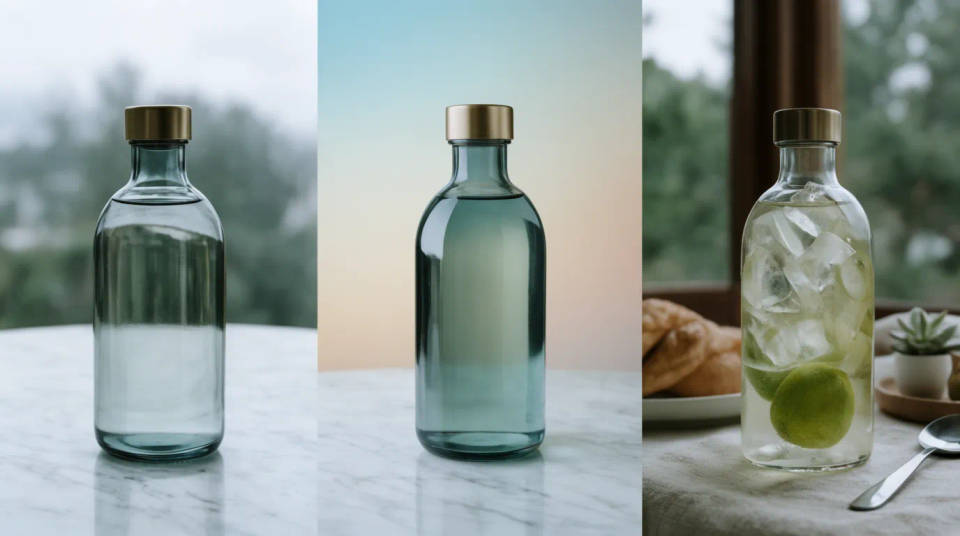
Put a product on a new scene
Shoot a product once and place it on as many backgrounds as a campaign needs, a marble surface, a soft gradient, a lifestyle setting. The model generates each scene and matches the light so the product does not read as pasted. One shot becomes a whole set of on-brand frames without a new session.
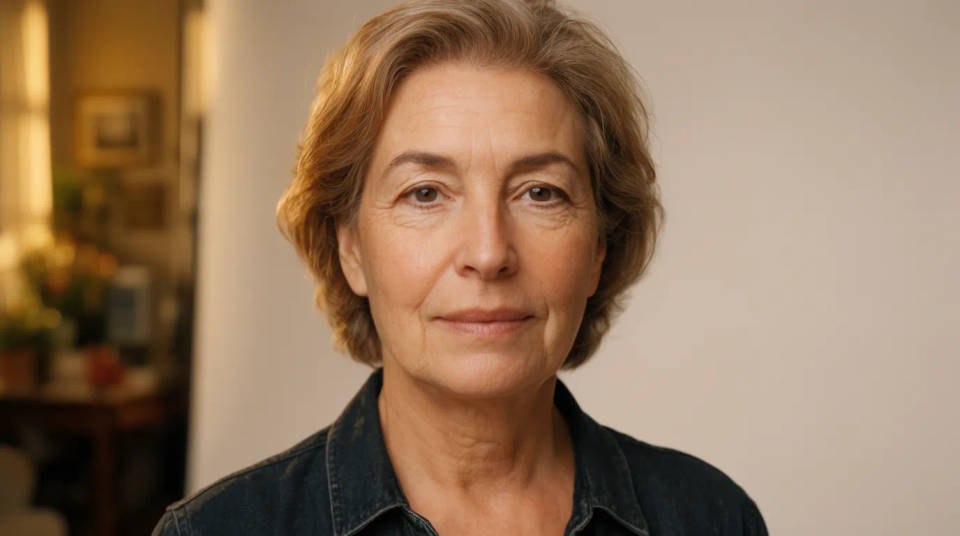
Give a portrait a clean studio backdrop
Turn a photo taken against a busy room into a portrait on a clean studio backdrop. The model swaps the scene and evens the light between the subject and the new background, so the shot looks taken in a studio rather than cut out of one place and dropped into another.
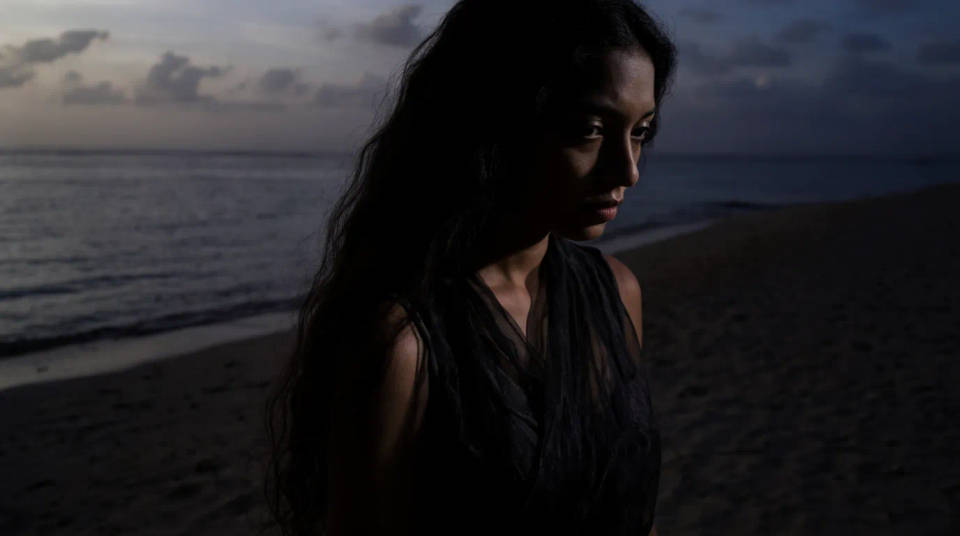
Move a subject to a new setting
Take a subject shot indoors and place them on a beach, a city street, or a golden-hour field. Because the background is generated and then relit to agree with the subject, the change of setting holds together as one photograph instead of a collage of two mismatched shots.
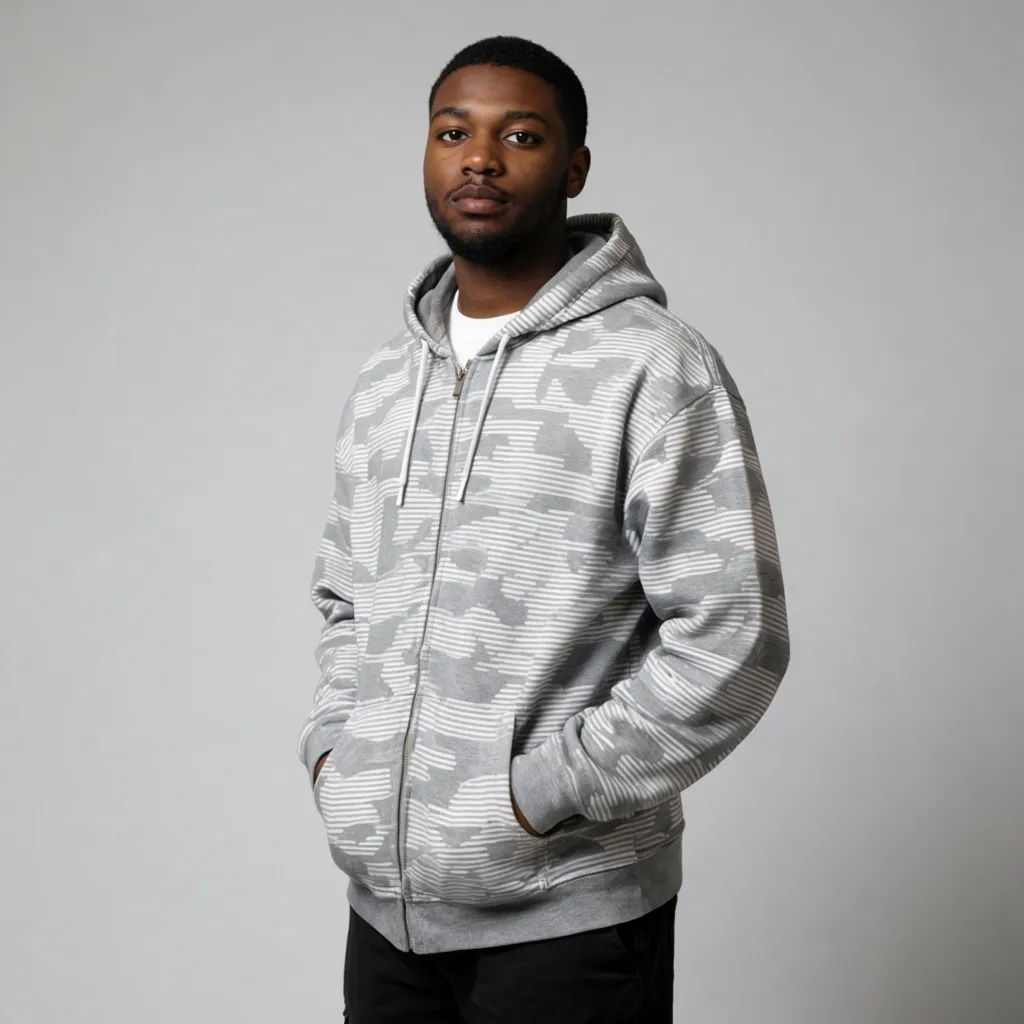
Standardise backgrounds across a set
A team page, a product line, or a listing set reads better when every shot shares one background. Swap each image onto the same generated scene and let the model match the light per photo, so a set taken in different places and lighting ends up looking like a single consistent shoot.

Prompt examples
Studio backdrop
Change the background to a soft grey studio backdrop and match the light on the subject
Edit prompt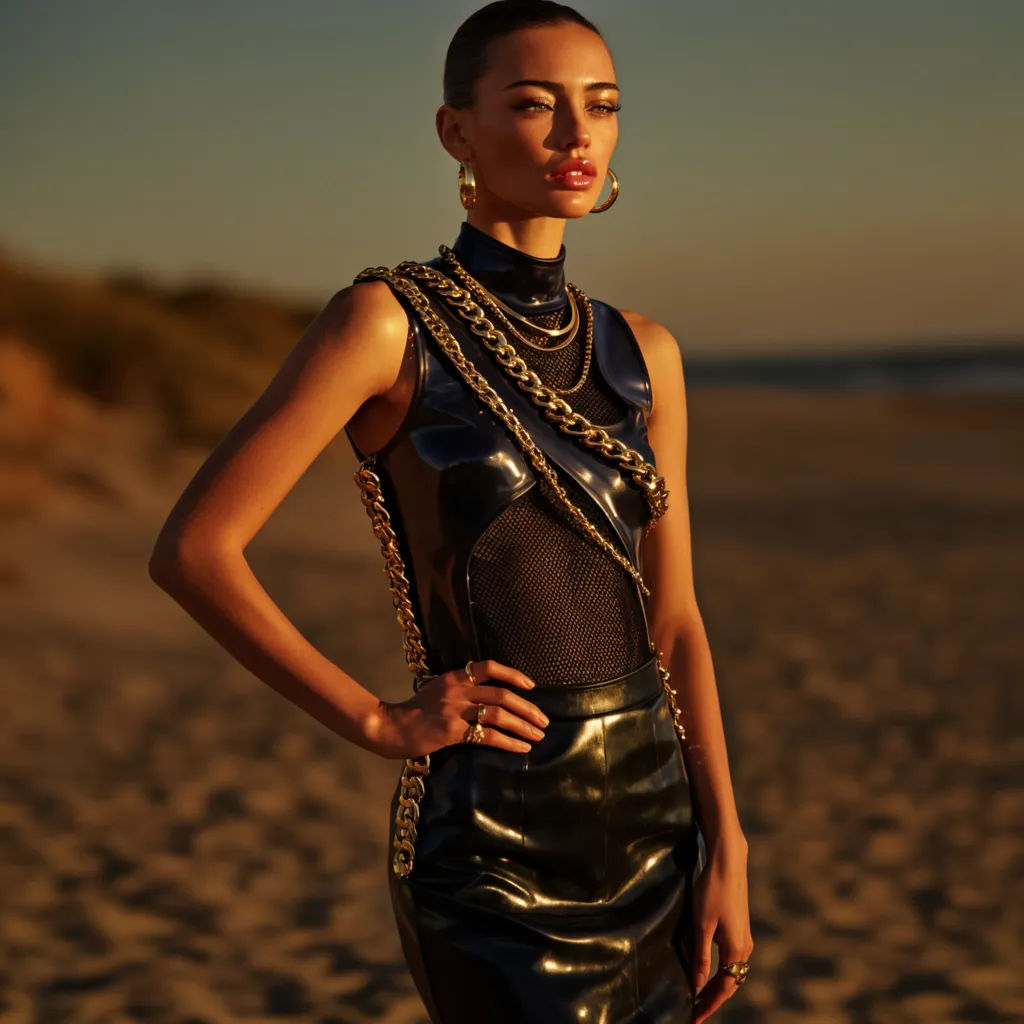
Golden-hour beach
Place the subject on a beach at golden hour with warm side light to match
Edit prompt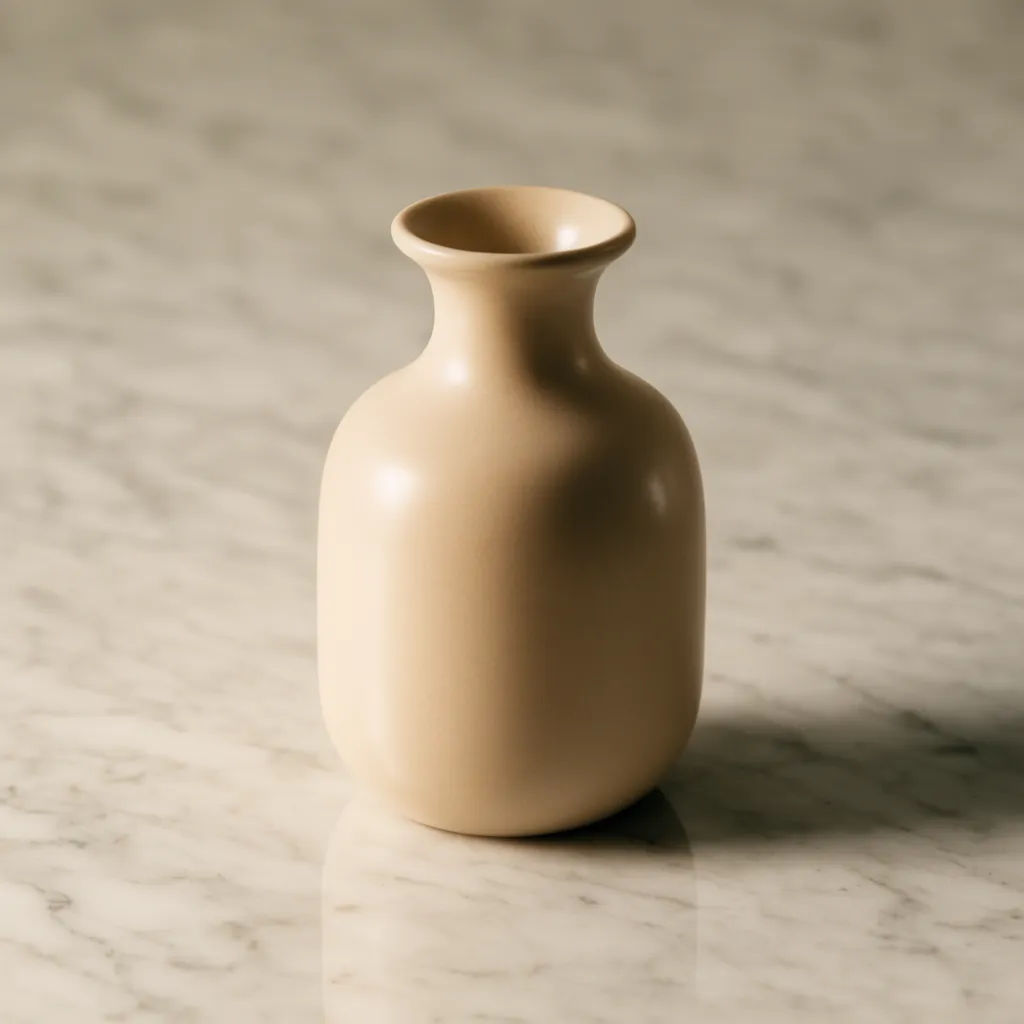
Product on marble
Swap the background for a clean marble surface and relight the product to sit on it
Edit prompt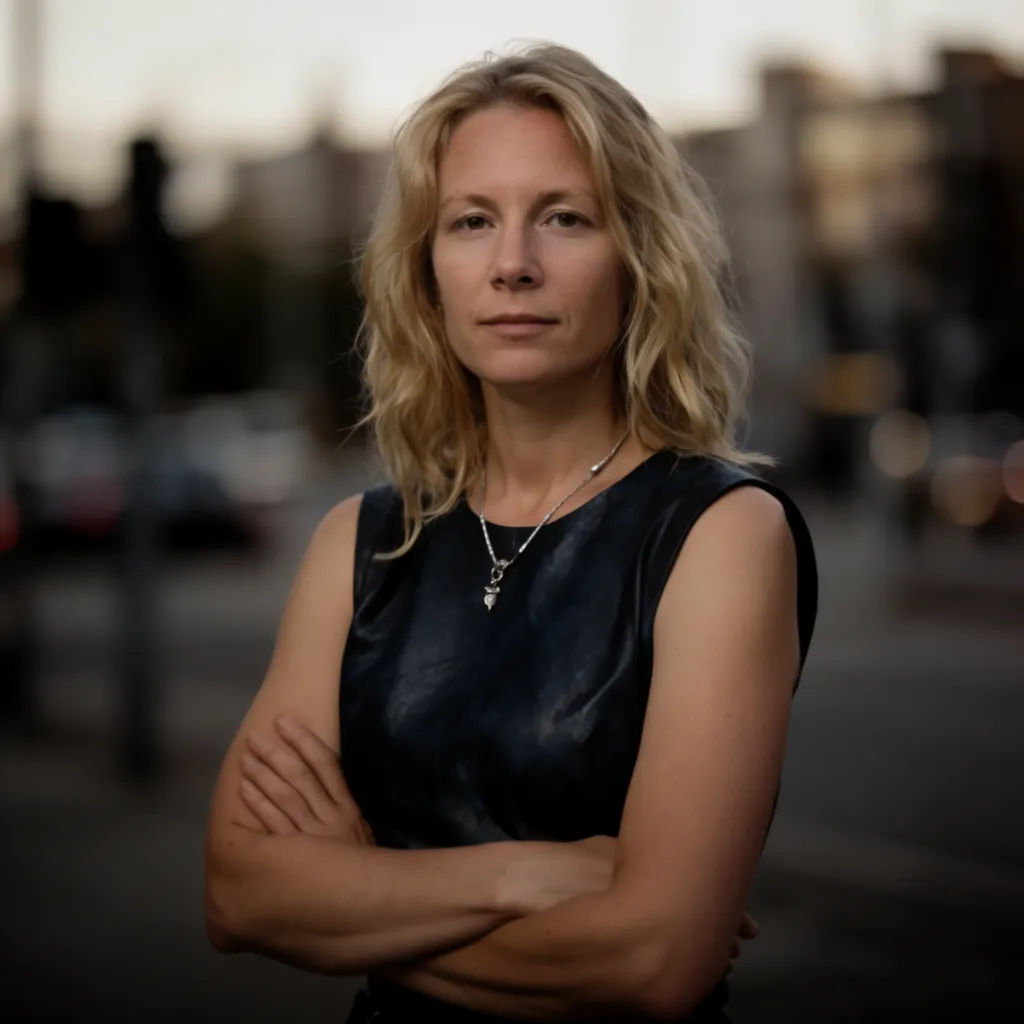

Solid brand colour
Replace the background with a flat brand teal and clean the subject edges
Edit prompt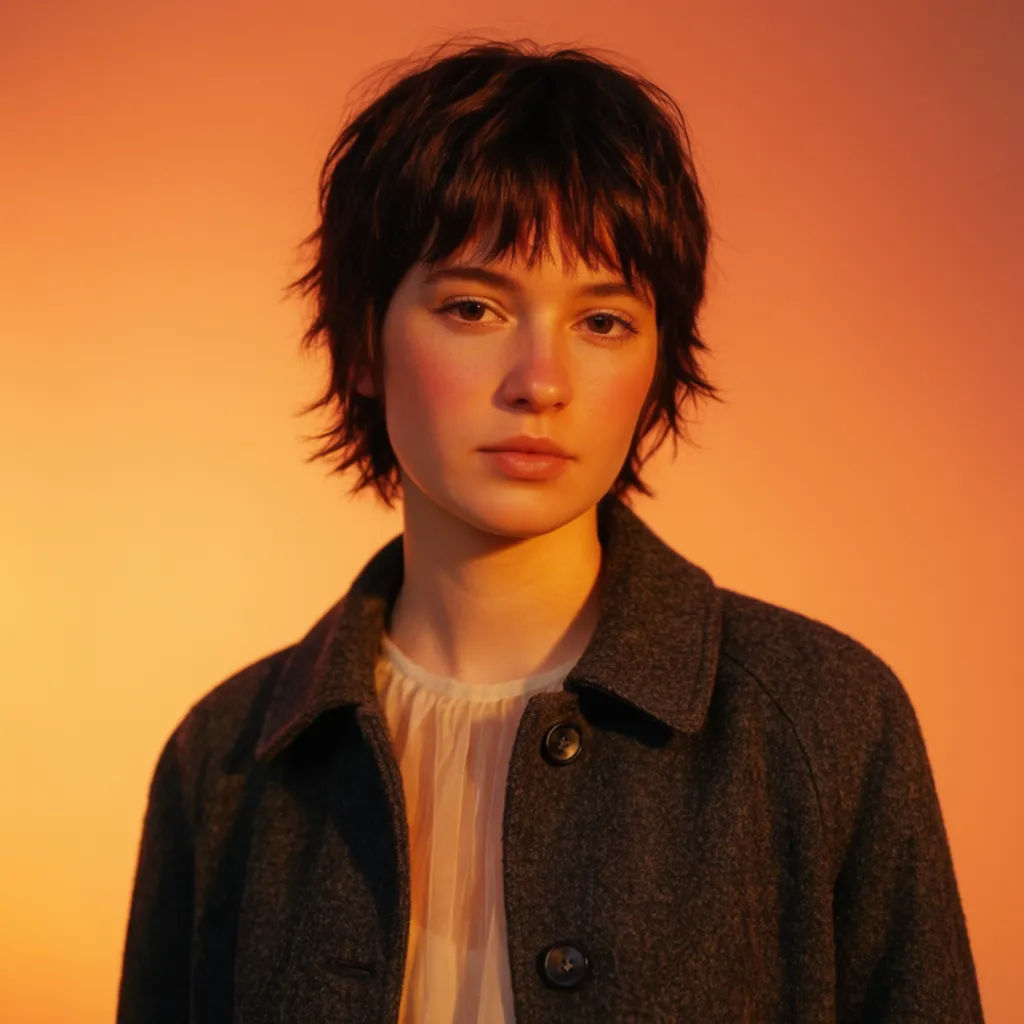
Match a set
Put this subject on the same gradient background as the rest of the set and match the light
Edit prompt
Cinematic storyboard
Share a scene description with character references. Get a full storyboard with shot angles and mood.

Messages to cinematic scene
Dramatize any text conversation into a cinematic multi-shot video.

Title sequence
Generate a professional film title card from scratch, with optional cinematic animation.
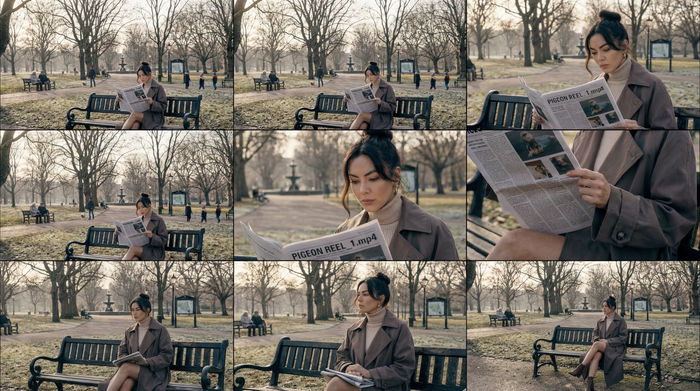
3x3 storyboard
Feed in a single image. Get 9 cinematic beats laid out as a 3x3 storyboard grid.

Chibi sprite animation
Turn any photo or description into an animated chibi sprite. Dance, jump, wave, attack, and more.
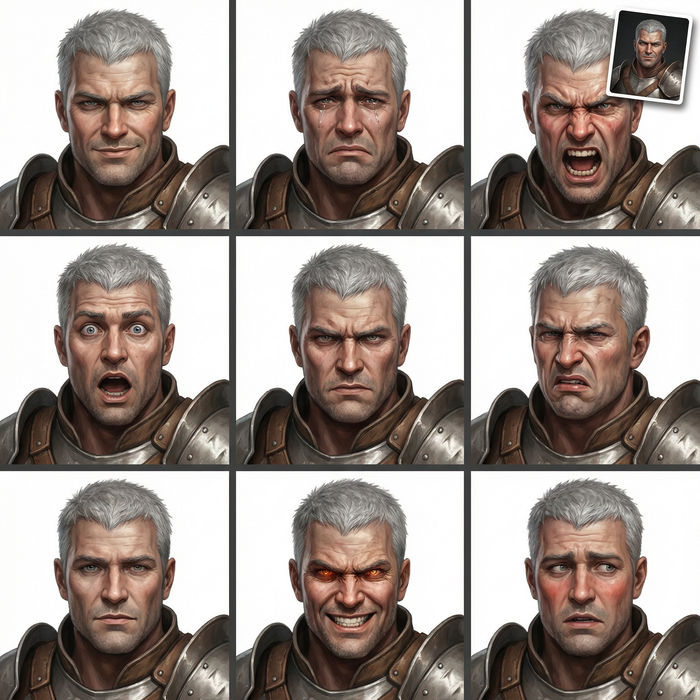
Expressions
Take any character image and generate 6 distinct facial expressions on a single reference sheet.
All on Morphic
Your background and composite kitModels
Nano Banana 2, Flux 2 Pro, ChatGPT Images, Grok Imagine, Recraft, Seedream, and more. Switch models when a new scene needs a cleaner blend.
Background remover
Just cut the scene away, when you want the subject on transparency rather than a new generated background.
Generative fill
Extend or paint into a scene, useful when a swapped background needs more room around the subject.
Image to image
Build the composite end to end, swap the scene, relight the join, and refine the whole frame.
General AI photo editor
The wider edit surface behind the background swap. Retouch the subject, fix the light, or restyle the whole shot from a prompt.
