Every image model
One pass, fully retouched
Retouch a photo in three steps
- 01
Open Morphic
Sign up and start creating on a free-flowing, infinite visual canvas.
- 02
Upload the photo
Drop in the portrait or shot you want to clean up. Any common format works.
- 03
Retouch and export
Morphic denoises, sharpens, and evens skin and light in one pass. Set the strength, then export.
Use cases
Polish a portrait or headshot
Even out skin tone, calm blemishes, and lift flat lighting while keeping real pores and texture. The person still looks like themselves, just on a better day. It is the finish a professional headshot needs, done in a single pass rather than a long manual edit.
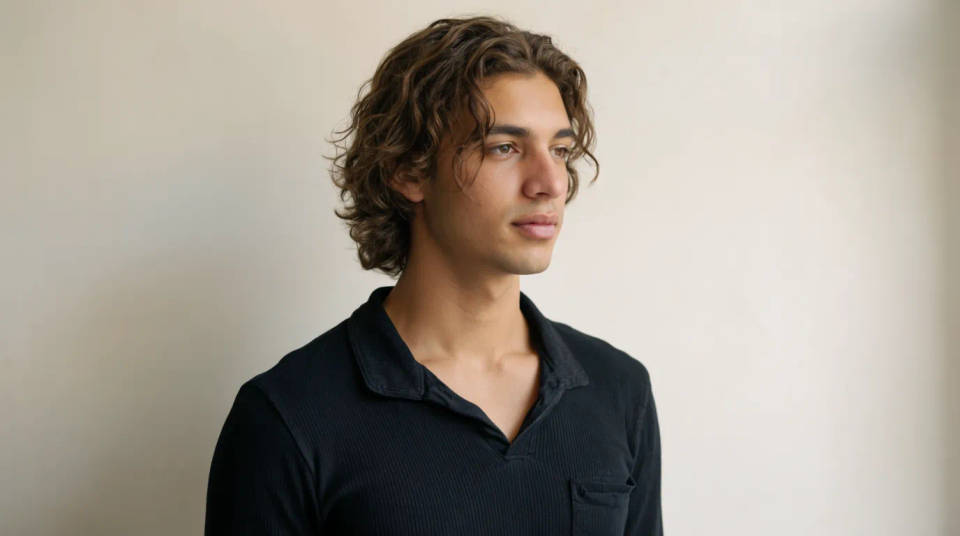
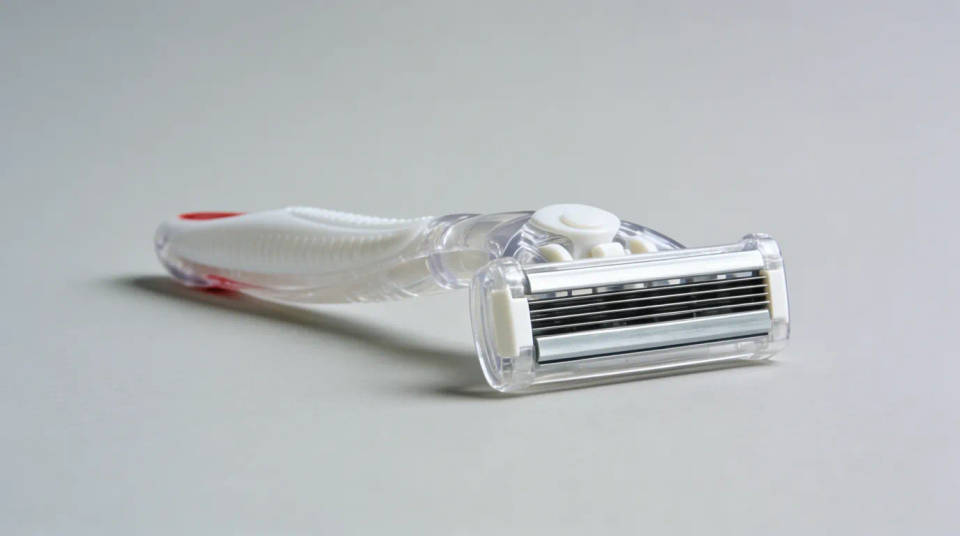
Clean up product photography
Kill sensor noise, sharpen the material detail, and even the light across a product shot so it looks studio-clean. Running denoise, sharpen, and tone together means the steps do not undo each other. A rough phone shot ends up looking considered enough for a store page.
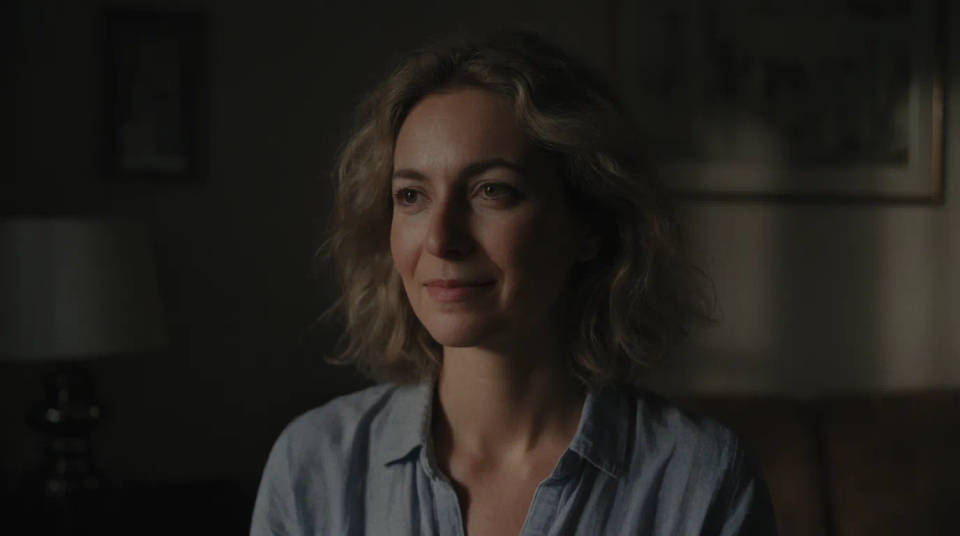
Rescue low-light photos
Photos shot in dim rooms come out grainy and muddy. The retouch pass removes the noise, recovers detail, and lifts the tone so the shot reads clean instead of murky. What looked unusable straight off the camera becomes something worth keeping and sharing.
Keep a whole set consistent
Retouching a batch by hand leaves each photo looking slightly different. Running the same one-pass retouch across a set holds the look steady, so an event gallery, a lookbook, or a listing series feels like one shoot. Work through them quickly without re-tuning every image.
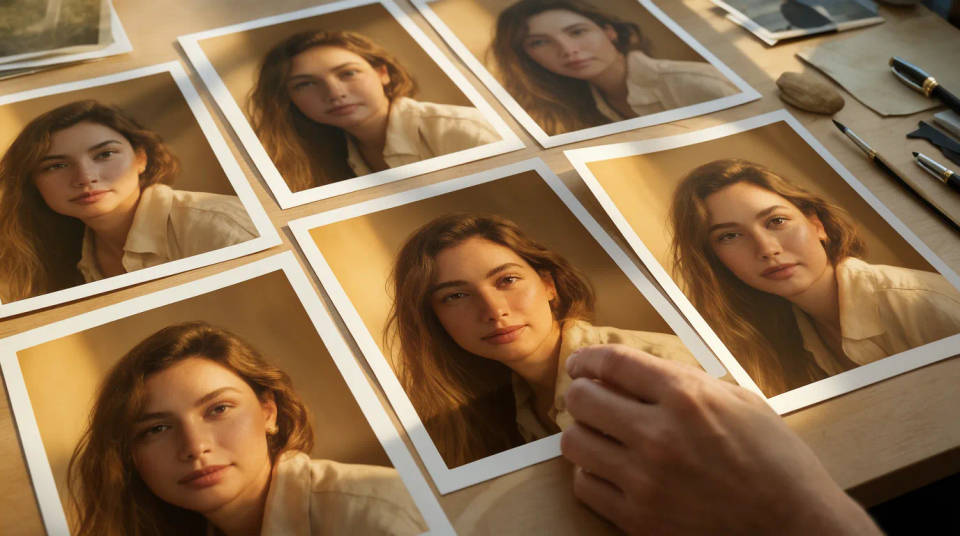
Prompt examples
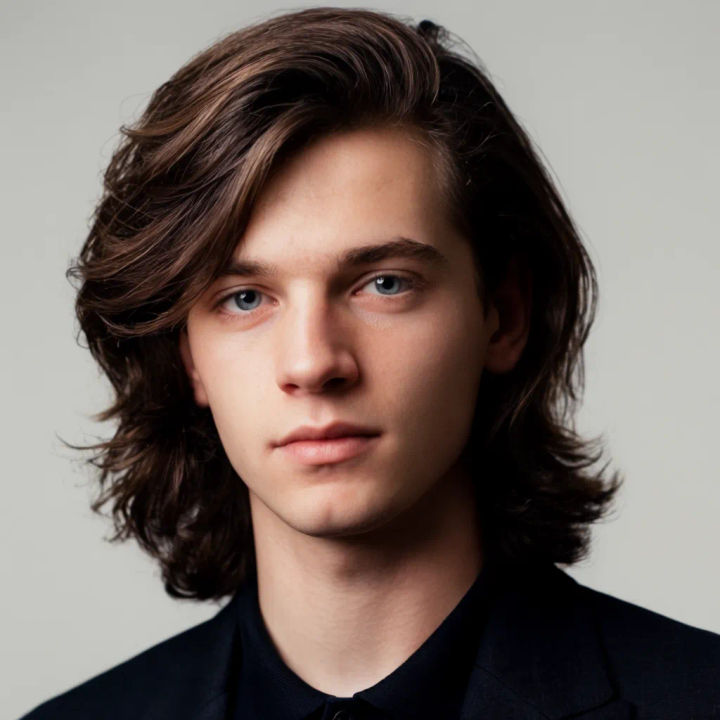
Natural portrait retouch
Retouch this portrait, even the skin and light but keep pores and texture
Edit prompt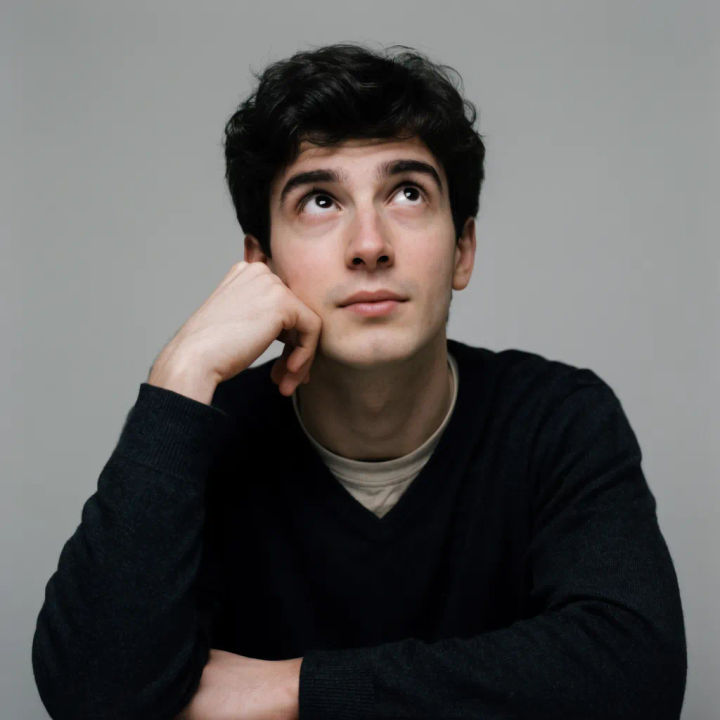
Clean a low-light shot
Denoise this low-light photo, lift the tone, and recover the detail in one pass
Edit prompt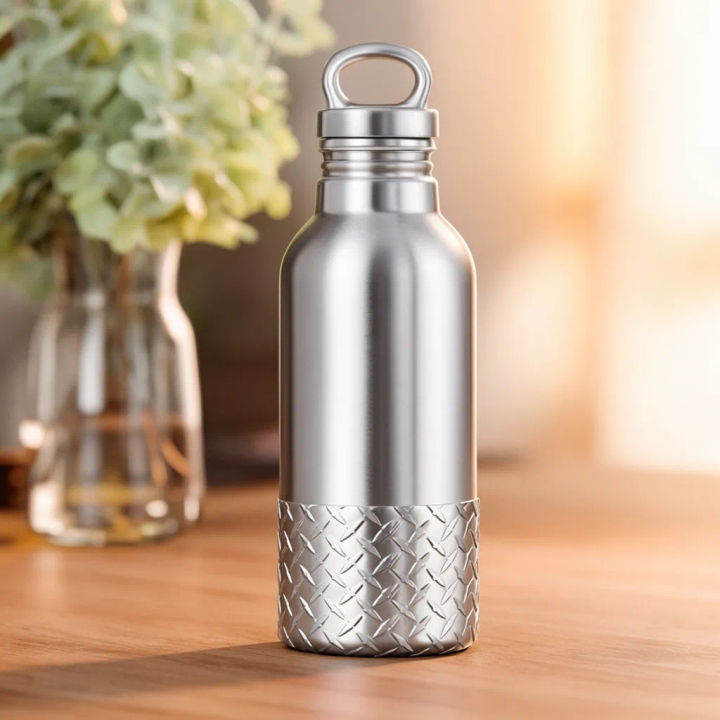
Polish a product photo
Retouch this product shot, remove noise, sharpen detail, and even the light
Edit prompt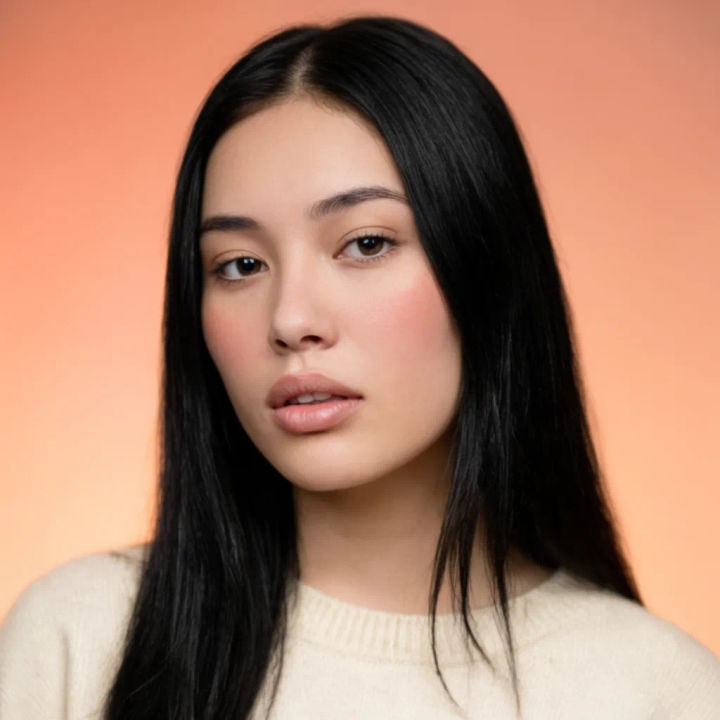
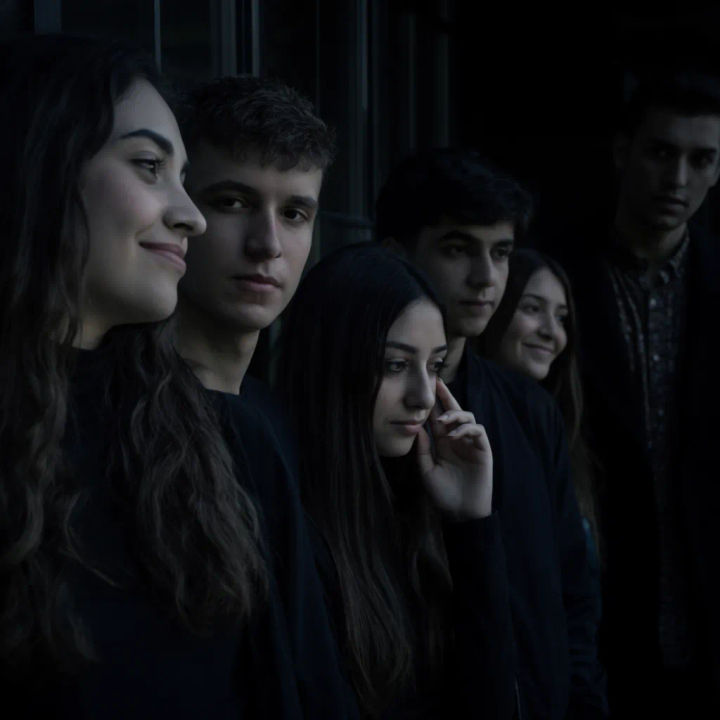
Even a group photo
Retouch this group photo, balance skin tones and clean the noise across everyone
Edit prompt
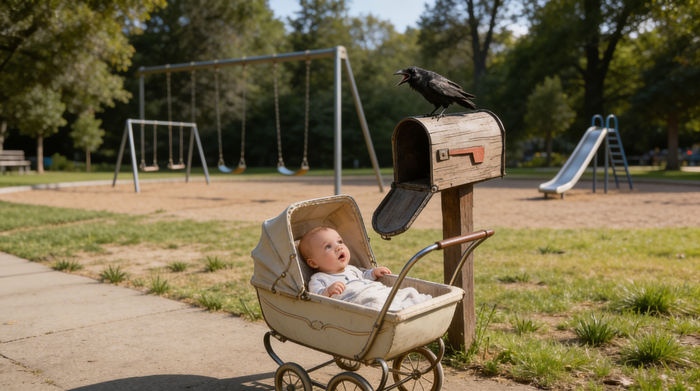
Cinematic storyboard
Share a scene description with character references. Get a full storyboard with shot angles and mood.
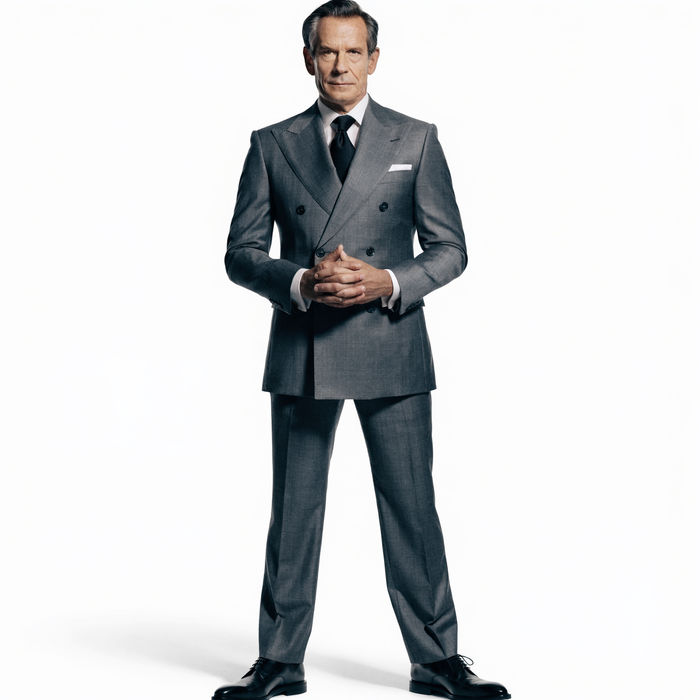
Chibi sprite animation
Turn any photo or description into an animated chibi sprite. Dance, jump, wave, attack, and more.

Messages to cinematic scene
Dramatize any text conversation into a cinematic multi-shot video.
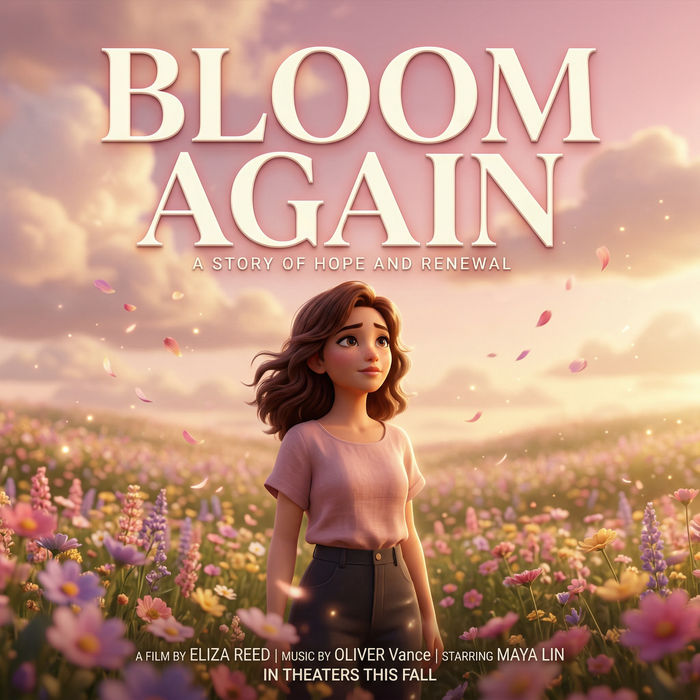
Title sequence
Generate a professional film title card from scratch, with optional cinematic animation.
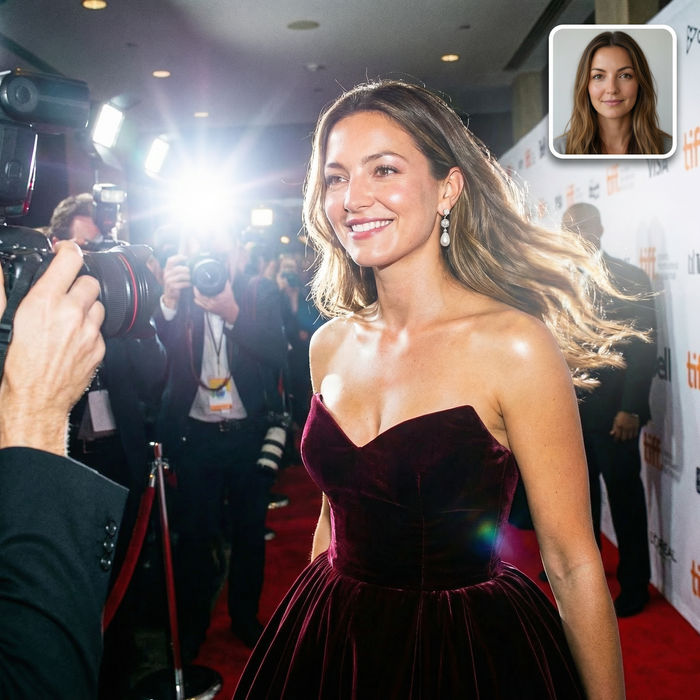
Paparazzi scene
Put anyone on a red carpet with paparazzi flashes, animated into a celebrity entrance video.
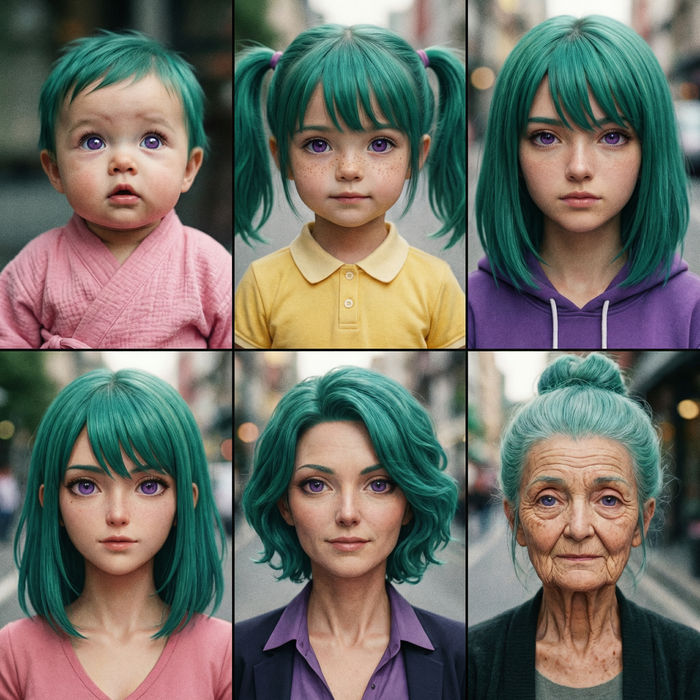
Character age progression
Upload a photo of a person or character and get a single grid image showing them at different life stages, from baby to elderly.
All on Morphic
Models
Nano Banana 2, Flux 2 Pro, ChatGPT Images, Grok Imagine, Recraft, Seedream, and more. Swap models when a retouch needs a different touch.
AI photo enhancer
Push overall clarity, colour, and detail a step further after the retouch pass is done.
AI photo restoration
Repair torn, faded, or aged photos when a shot needs rebuilding, not just cleaning up.
Image to image
Edit, restore, and rebuild any photo in the same workspace that powers retouching.
AI photo editor
Take the retouched frame further. Swap the background, drop an object, or relight the shot without leaving the photo.
