Every image model
One workspaceBlack and white looks
Convert to black and white in three steps
- 01
Open Morphic
Sign up and start creating on a free-flowing, infinite visual canvas.
- 02
Upload your photo
Drop in a colour image and describe the mood, from soft grey scale to bold high contrast.
- 03
Generate and export
The model grades the tones into black and white. Rerun to shift the contrast, then export.
Use cases
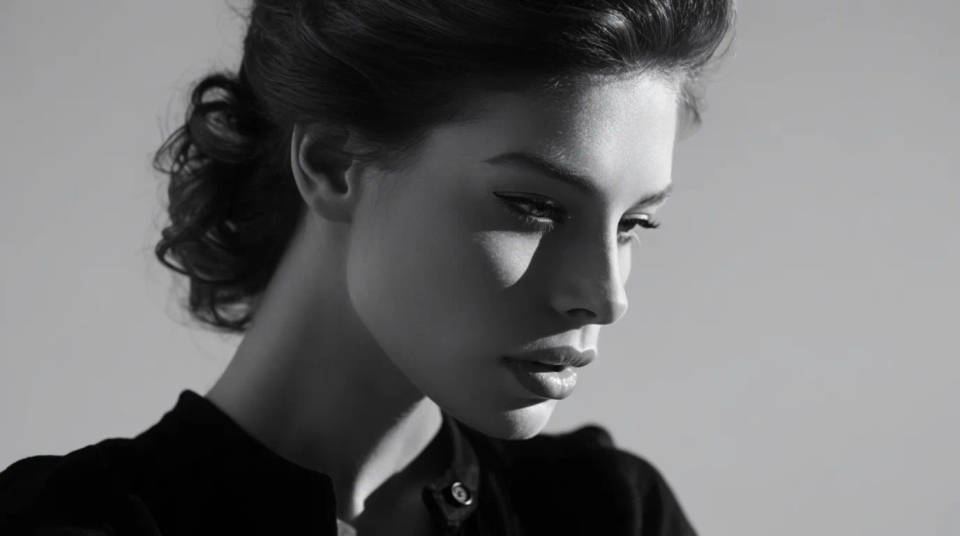
Portraits with real depth
A flat desaturate leaves skin looking grey and lifeless. Grading the conversion keeps the separation between skin, hair, and background, so a black and white portrait stays dimensional and the eyes still draw you in. Ask for a soft studio grey scale or a moody, contrasty look depending on the subject.
Street and documentary frames
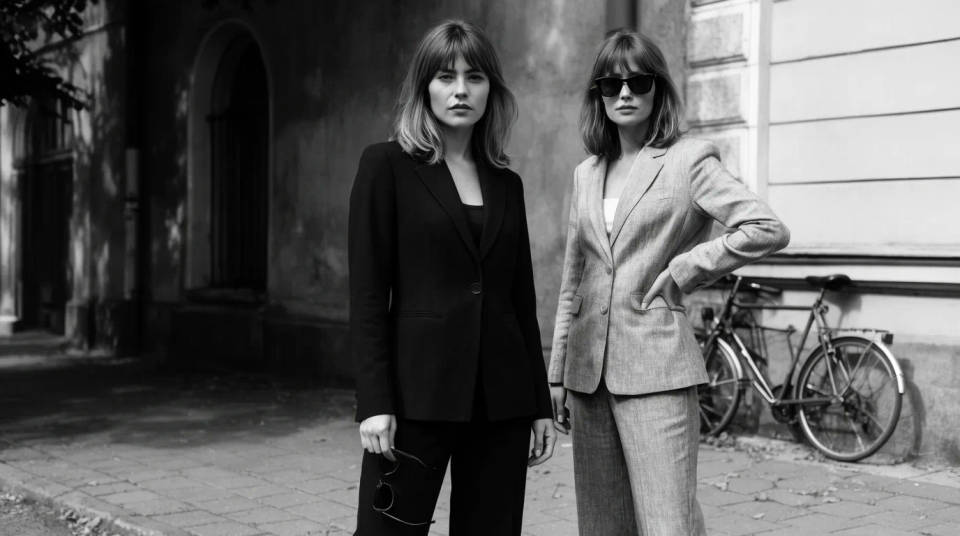
Black and white suits reportage, where tone and texture carry the story more than colour. The filter holds detail from bright pavement to deep doorway shadow, so a street frame keeps its grit and readability. Push the contrast for a classic high-key look or pull it back for a gentler grey scale.
Architecture and landscape
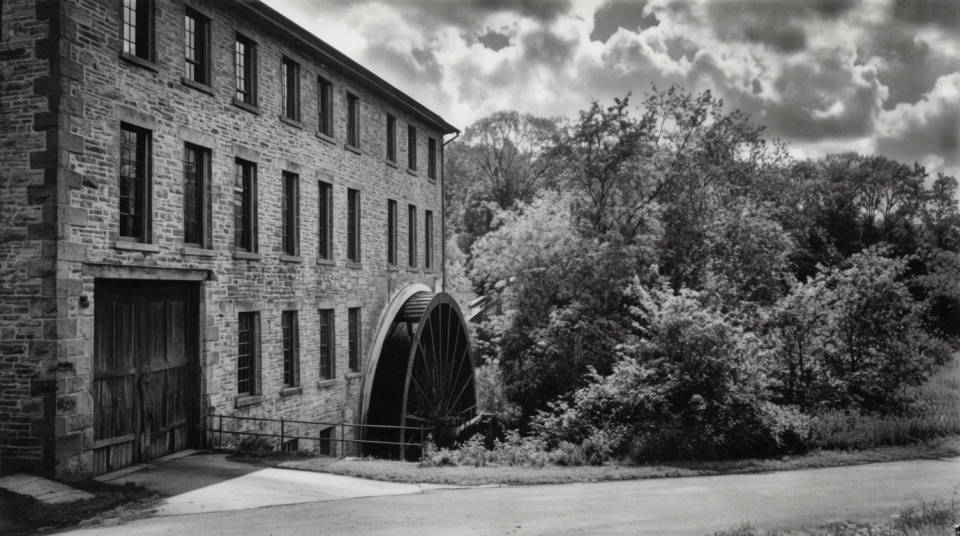
Buildings and wide scenes come alive in monochrome when the tones are graded rather than flattened. A dramatic sky separates from the stone, and foliage keeps its shape instead of merging into one grey. It is a quick way to give a location shot a timeless, gallery feel before you print or post it.
Clean product and brand shots
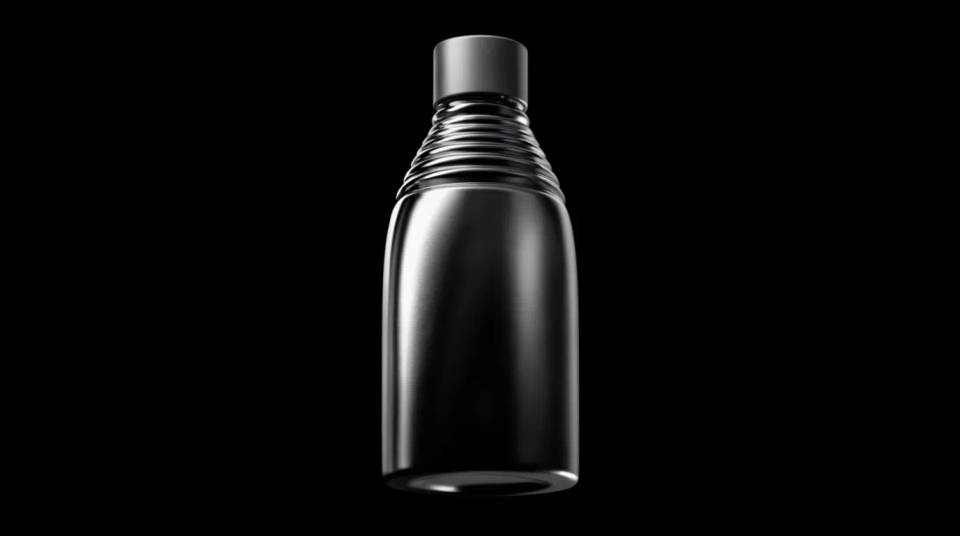
A monochrome product shot reads as considered and premium next to a busy colour feed. Convert a packshot to a crisp black and white with deep blacks and bright highlights, so the form and material stand out on a white or dark ground. Rerun to match the contrast to the rest of a brand set.
Prompt examples
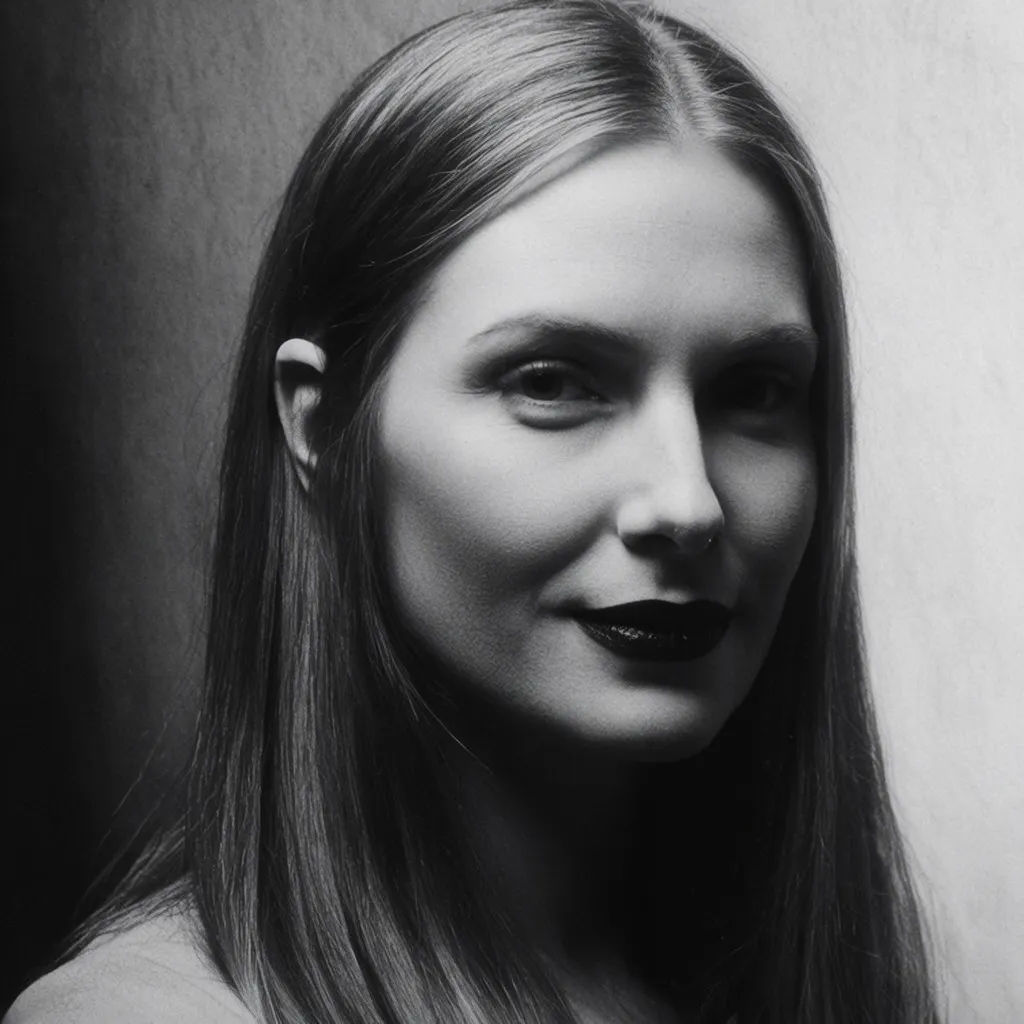
Moody portrait
Convert this portrait to black and white with a moody, high-contrast cinematic grade and deep shadows
Edit prompt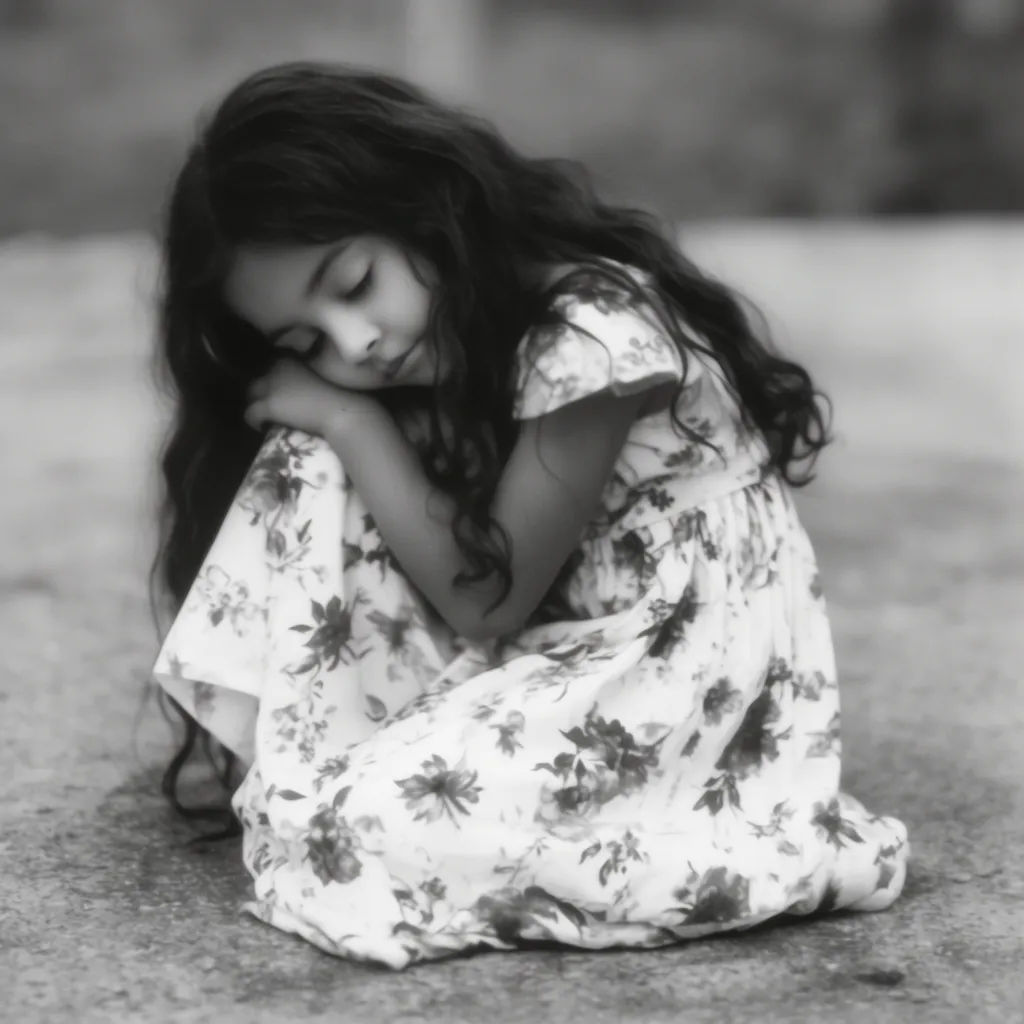
Soft grey scale
Turn this photo into a soft, low-contrast black and white with gentle midtones
Edit prompt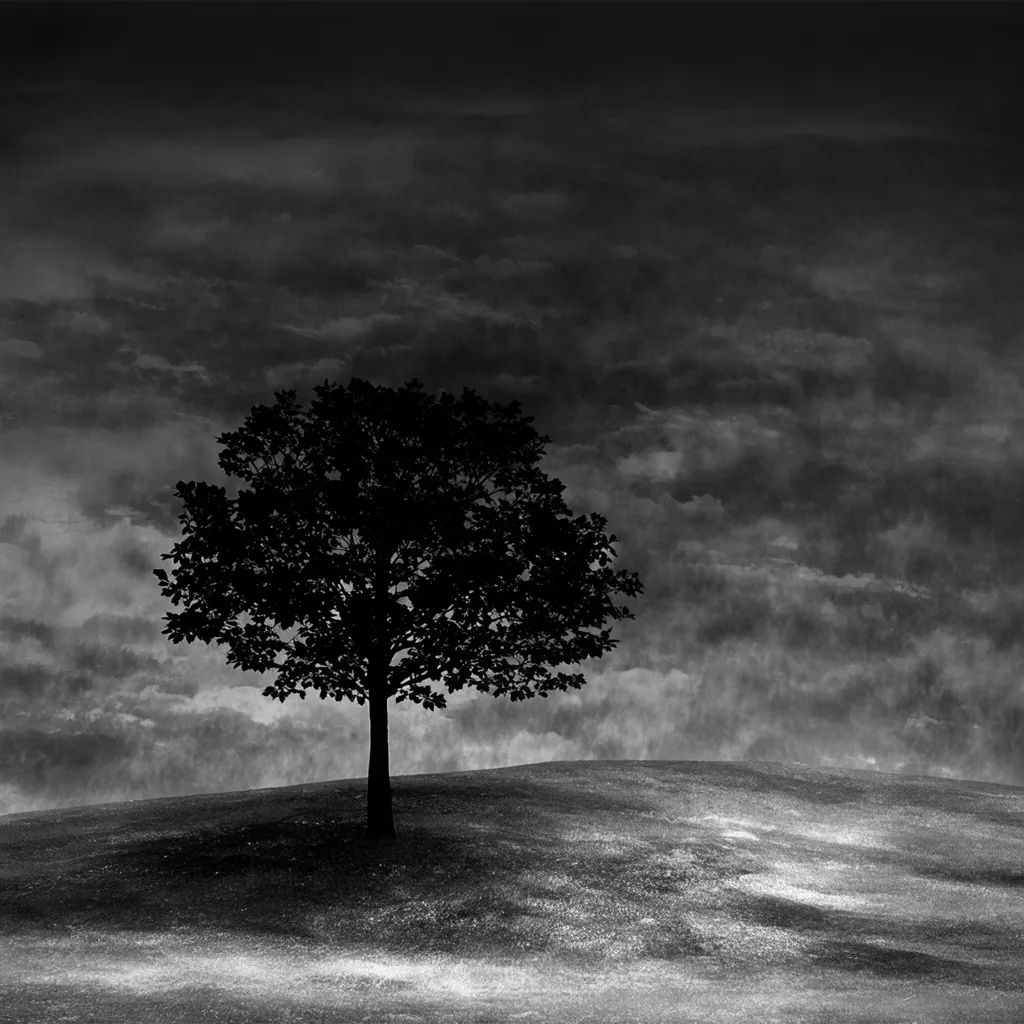
Dramatic sky
Convert this landscape to black and white and darken the sky for a dramatic tonal contrast
Edit prompt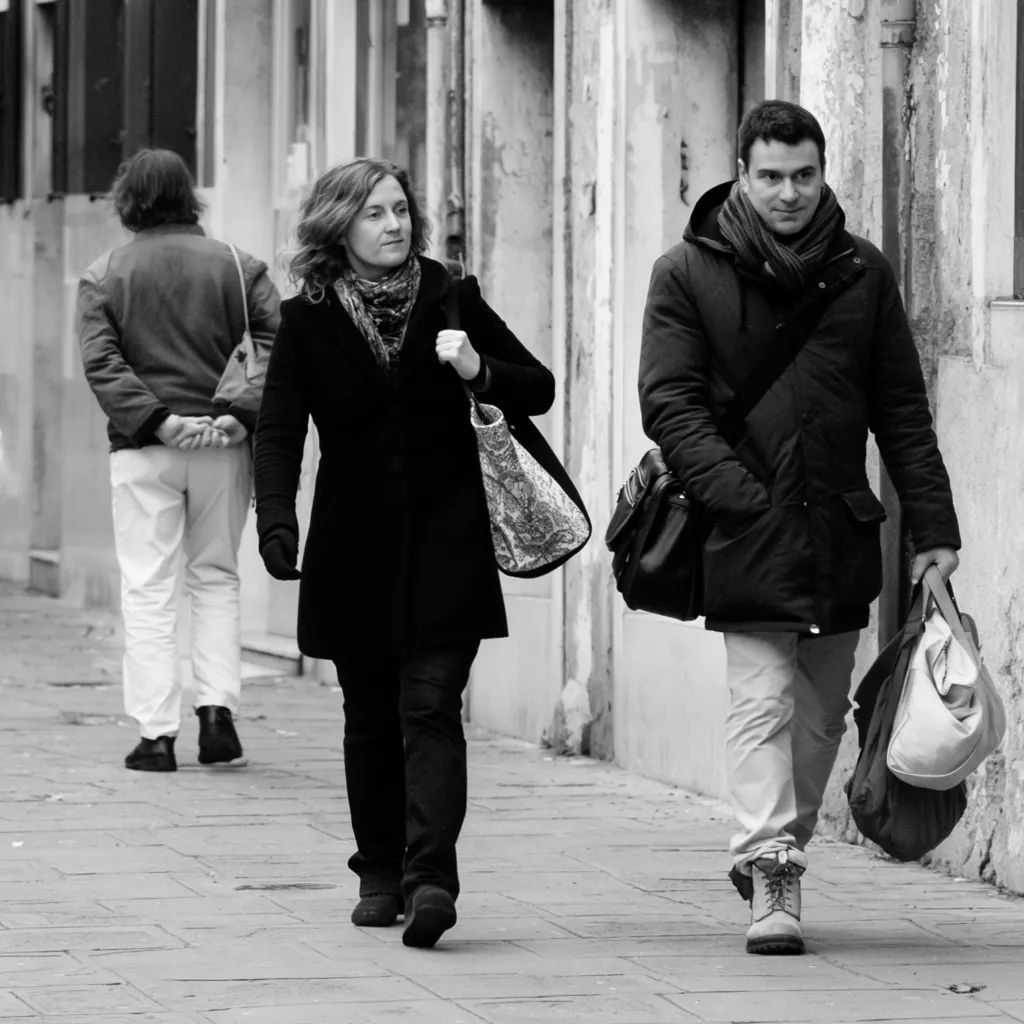
Street reportage
Give this street photo a classic reportage black and white look with fine grain
Edit prompt
Clean packshot
Convert this product shot to a crisp black and white with deep blacks on a white background
Edit prompt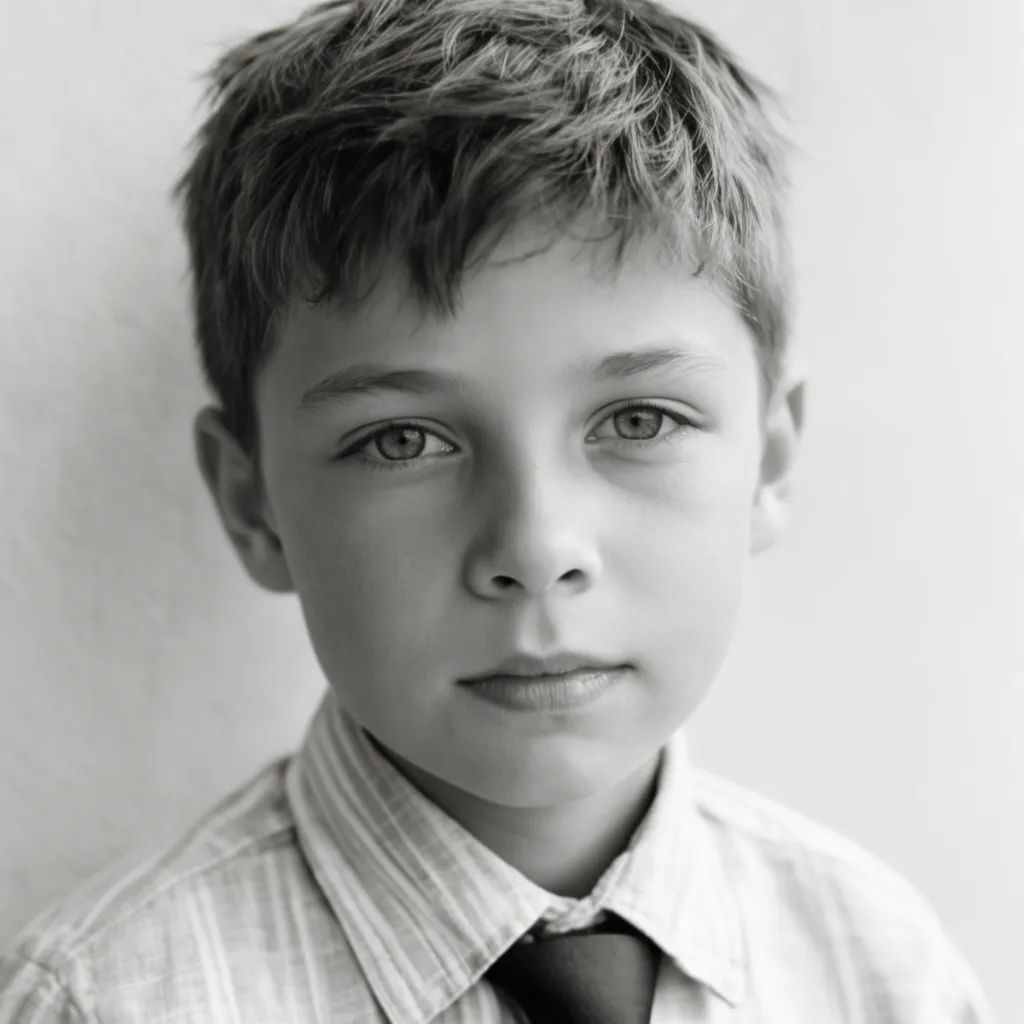
Film feel
Grade this photo to a classic black and white film look with rich midtones and subtle grain
Edit promptArt style transfer
Pick a reference image, apply its visual style to your own photo or artwork.
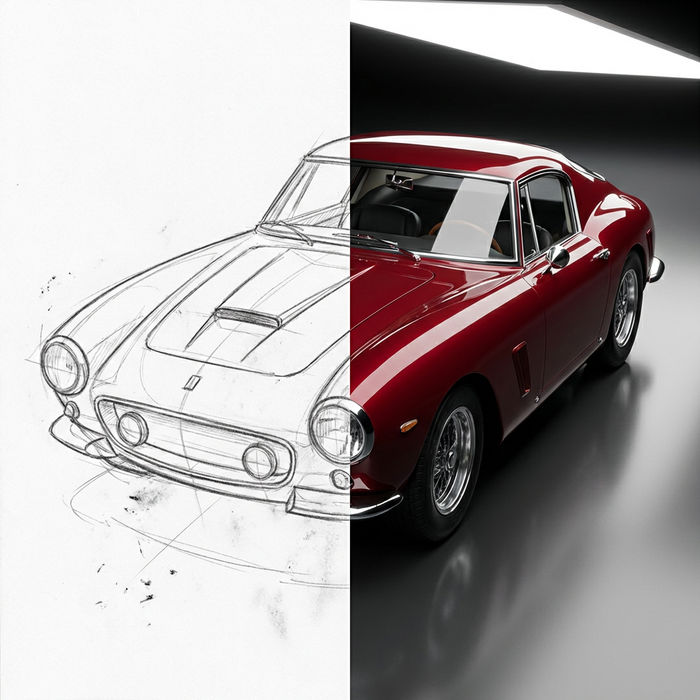
Sketch to render
Turn any sketch or drawing into a finished render.
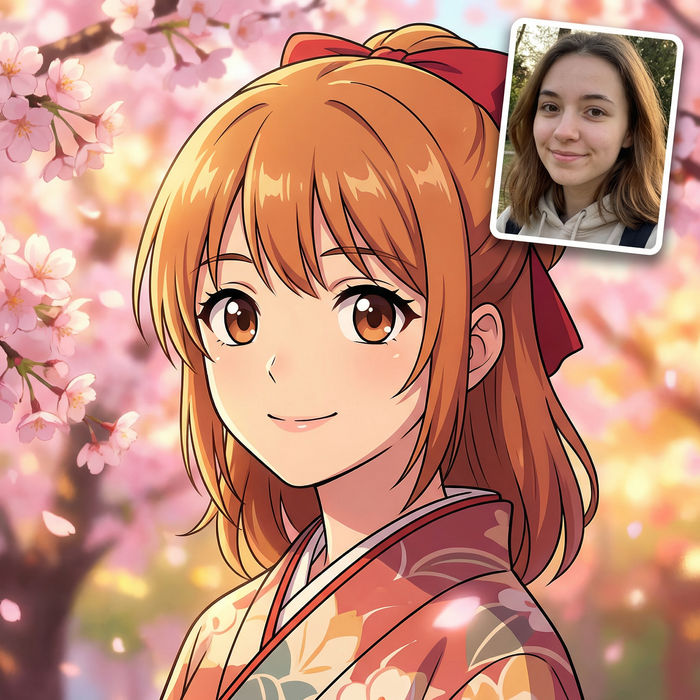
Anime style transfer
Pick any anime illustration as your style guide. Apply its look to any image.
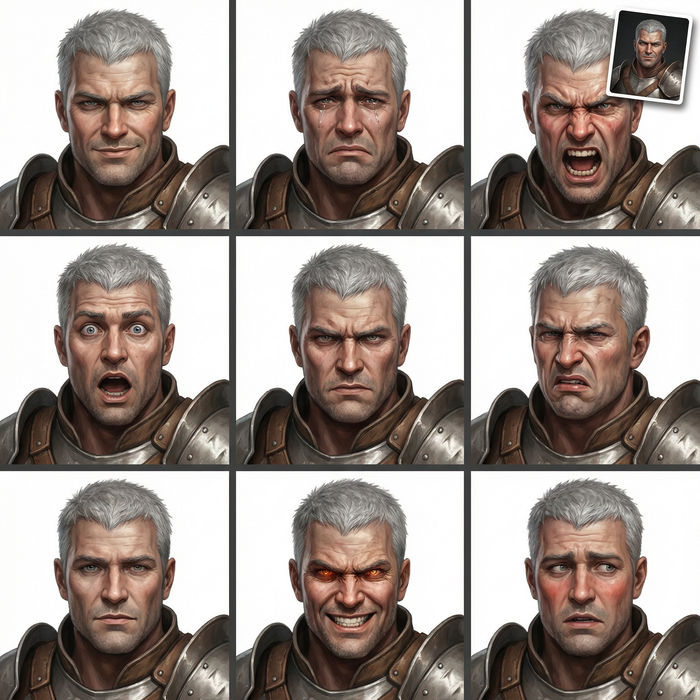
Expressions
Take any character image and generate 6 distinct facial expressions on a single reference sheet.
Chibi sprite animation
Turn any photo or description into an animated chibi sprite. Dance, jump, wave, attack, and more.
Aspect ratio
Convert any image to a new aspect ratio. Smart crop or extend the edges to fit.
All on Morphic
Your photo grading toolkitModels
Nano Banana 2, Flux 2 Pro, ChatGPT Images, Grok Imagine, Recraft, Seedream, and more. Switch models when a grade needs to hold shadow detail more cleanly.
AI filter
Reach for other looks, from film emulations to colour grades, beyond black and white.
Colour grading
Set the mood of a photo with a full colour grade when you want tone rather than monochrome.
Image to image
Restyle any photo through the model, the same method that powers the black and white grade here.
