Edit in another app
Send your Compose timeline to Final Cut Pro or DaVinci Resolve as an editable project, with your clips, cuts and captions in place.
Edit in another app on Morphic turns your Compose timeline into a project file that Final Cut Pro or DaVinci Resolve opens as an editable timeline. Your clips can travel with it, so you can keep cutting, grade the color or finish the sound in the editor you already use. Nothing is rendered: each clip, cut and setting comes across as that app's nearest equivalent.
When to use it
- Grade the color in DaVinci Resolve after cutting in Morphic.
- Hand the edit to an editor, client or post house that works in Final Cut Pro or Resolve.
- Mix the sound or add effects in a tool built for it.
- Teach or learn editing: build a first cut in Morphic, then finish it in the editor a class uses.
If you only need the finished video, export an MP4 instead. See Export a video.
Supported apps
| App | What you download, with source files |
|---|---|
| DaVinci Resolve | One .otioz file (OpenTimelineIO) with the clips inside, plus an .srt if the timeline has captions |
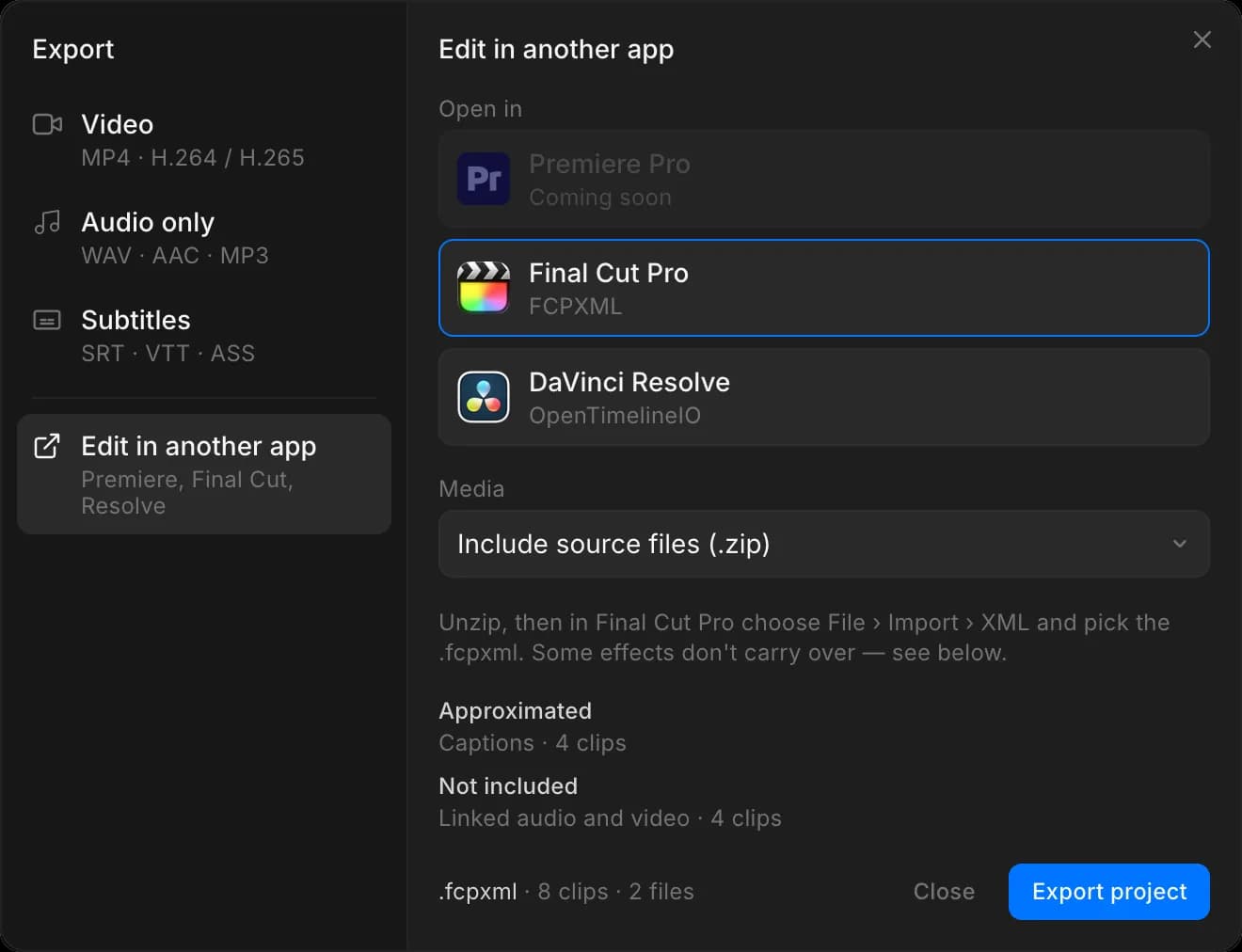
| Final Cut Pro | A .zip with the .fcpxml and a media folder, plus an .srt and a luts folder when the timeline needs them |
Premiere Pro is listed as 'Coming soon'.
Edit in another app is on paid plans. On the free plan the apps are locked and the button reads 'Upgrade'.
Export the project
- In Compose, click 'Export' at the top right
- Click 'Edit in another app'
- Under 'Open in', pick 'Final Cut Pro' or 'DaVinci Resolve'
- Set 'Media':
- 'Include source files' puts your clips in the download. Use this unless the other app already has the files.
- 'Timeline only, relink later' downloads a
.zipwith the timeline and no clips. After you import, relink the clips to your copies of the files; they keep the names they have in Morphic.
- Check the lists under the hint: 'Approximated' and 'Not included' name what will change in that app, with a clip count
- Click 'Export project'
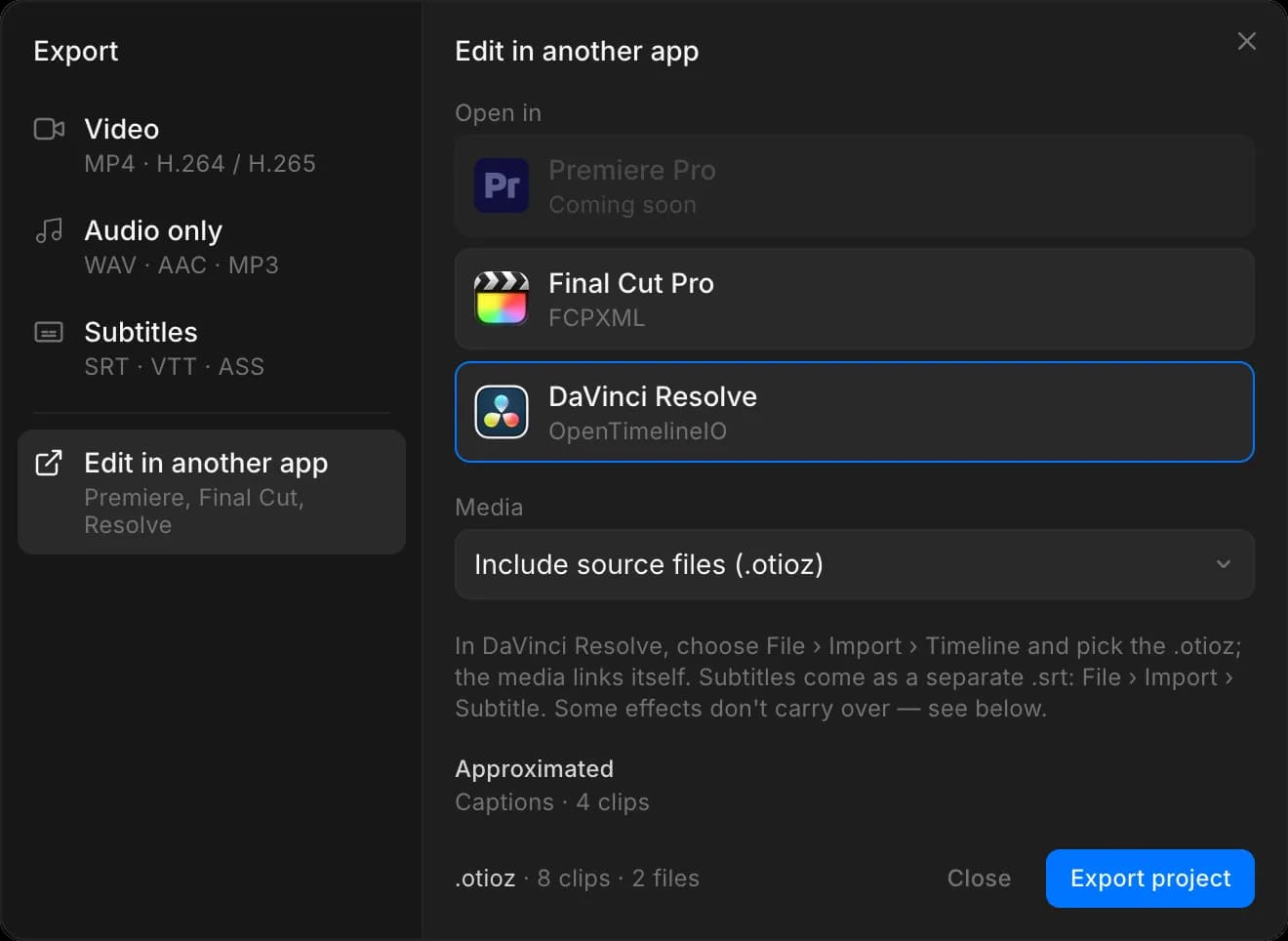
The download is named after the timeline, for example Timeline.otioz. With source files included, the clips are fetched one at a time, so keep the tab open until it finishes.
Open it in DaVinci Resolve
- In Resolve, choose File › Import › Timeline
- Pick the
.otioz. The clips link on their own. - (Optional) If your timeline has captions, choose File › Import › Subtitle and pick the
.srtthat downloaded with it
With 'Timeline only', unzip the download first and pick the .otio inside.
Open it in Final Cut Pro
- Unzip the download. Keep the
.fcpxmland themediafolder side by side. - In Final Cut Pro, choose File › Import › XML
- Pick the
.fcpxml
Captions come in as Final Cut Pro captions, in its default caption style.
If you used 'Curves', 'Hue curves' or 'LUTs', each graded clip gets a Custom LUT effect, and the matching .cube file is in the luts folder. The effect comes in with no LUT chosen: open it, choose 'Choose Custom LUT' and pick the .cube named in the effect.
The .fcpxml is for Final Cut Pro only. Renaming it to .xml does not make it open in Premiere Pro.
What carries over
Each app gets its nearest native match for every part of your edit. Where an app has no match, the part is approximated or left out. The dialog lists those for your timeline, so check it before you export.
| In Compose | Final Cut Pro | DaVinci Resolve |
|---|---|---|
| Clips, cuts, trims, lanes and clip names | Yes | Yes |
| Hidden and muted lanes and clips | Come in disabled | Come in disabled |
| Position, scale, rotation and crop | Yes | Yes |
| Opacity, keyframes and speed | Yes | Yes |
| Volume and pan | Yes | Close match |
| 'Channels' (Mono, Left only, Right only) | Not carried, plays stereo | Not carried, plays stereo |
| Video and its sound kept together | No, they come in as separate clips | Yes |
| Fades | Close match | Close match |
| Transitions | Cross dissolves, shortened or left out where a clip has no spare footage | Nearest Resolve transition; others become cross dissolves |
| Blend modes | Close match | Close match |
| Text | Basic title with the wording, font, size, color, outline and shadow | Text generator with the wording, font, size and color |
| Captions | Final Cut Pro captions, plus an .srt | A separate .srt |
| Markers | Yes, without colors | Yes, nearest color |
| 'Basic correction' and 'Color wheels' | Close match, through Color Adjustments | Not carried |
| 'Curves', 'Hue curves' and 'LUTs' | Close match, through Custom LUT | Not carried |
| Blur and sharpen | Close match | Not carried |
| Vignette, film grain, glow and chroma key | Not carried | Not carried |
Tips
- Install the fonts your text uses before you import. Final Cut Pro can reset a title whose font is missing.
- Compose keeps overlapping or boosted audio from clipping. Neither app does this on import, so if the mix distorts, add a limiter there.
- The export is a copy. Changes you make in Compose afterwards do not reach the other app, so export again for a new version.
That's how you use Edit in another app on Morphic. Reach for it when a project needs finishing in Final Cut Pro or DaVinci Resolve, or when you are handing the edit to someone who works there.
If you have any trouble or have any questions, feel free to reach out. We're happy to help. Write to us at support@morphic.com.
Exporte um vídeo
Transforme sua linha do tempo finalizada em um MP4 que você possa baixar e compartilhar, e escolha a resolução e o codec certos para o destino.
Atalhos de teclado
As teclas que tornam a edição rápida, além de predefinições para Premiere, Resolve e Final Cut, caso você já edite em outro lugar.