Track subject
Make a mask that follows a person or object through a clip, then swap, blur or recolor everything around it.
Track subject on Morphic finds a person or object in a video clip and makes a mask that follows it through the shot. You mark the subject on one frame, and Compose does the rest. Editors call this rotoscoping or an AI cutout.
What a mask does
- It keeps the subject visible and hides everything else
- The lane below shows through the hidden part
- A tracked mask moves with the subject, frame by frame
The mask is a black-and-white video, white where the subject is. Your original clip stays as it is.
What you can make
| Goal | How |
|---|---|
| Swap the background | A new clip on the lane below |
| Blur the background | A blurred copy of the clip on the lane below |
| Color pop | A black-and-white copy of the clip on the lane below |
| Hide the subject | Turn on 'Invert' |
Steps are in Use the mask.
Before you start
- Works on video clips up to a minute long. Not on images, text, adjustment layers or locked clips.
- Each run is a small, fixed charge, shown on the button before you start. See Credits.
Track a subject
- Select the clip on the timeline.
- Move the playhead to a frame where the subject is clear and whole.
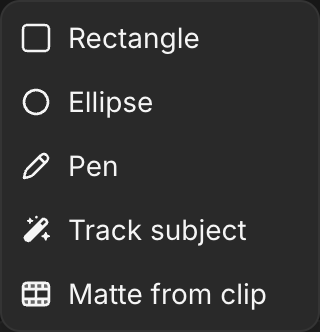
- In the 'Video' tab, click '+' beside 'Masks' and choose 'Track subject'. Or right-click the clip and choose 'Add mask', then 'Track subject'.
- In the preview, drag a box around the subject.
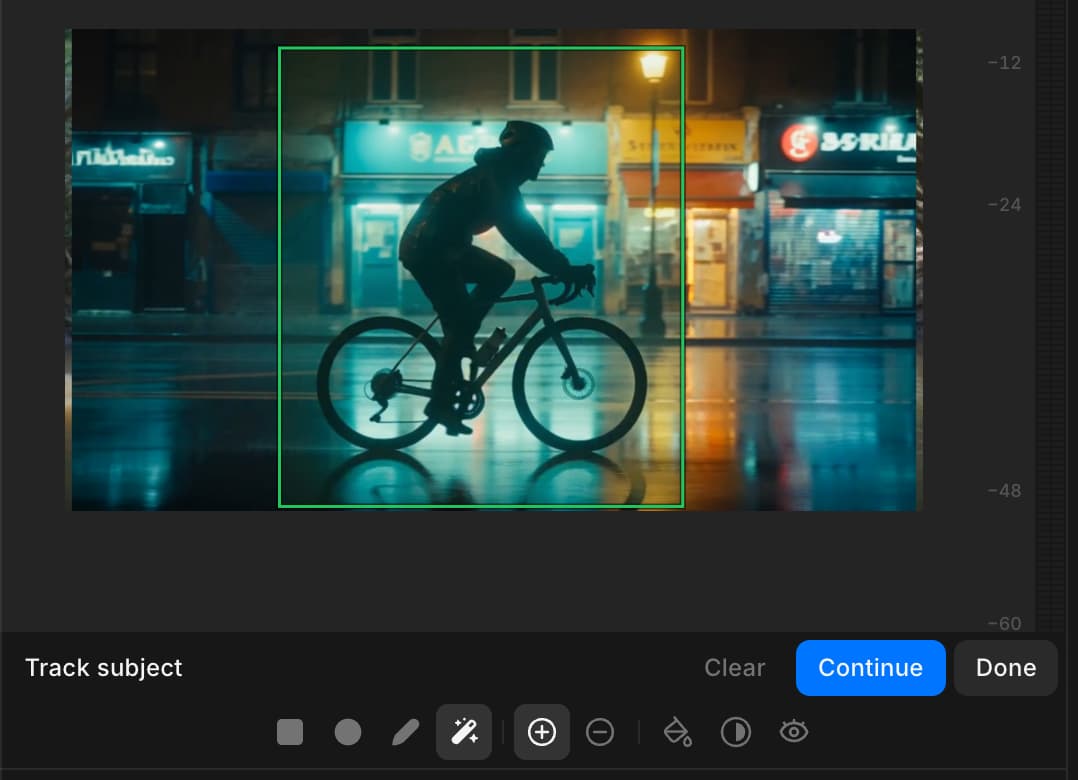
- Click 'Continue'.
- In 'Prompt', type what the subject is in a word or two, such as 'cyclist' or 'dog'.
- (Optional) In 'Name', type a label for the mask.
- Under 'Track', choose 'Forward', 'Backward' or 'Both'. See Directions.
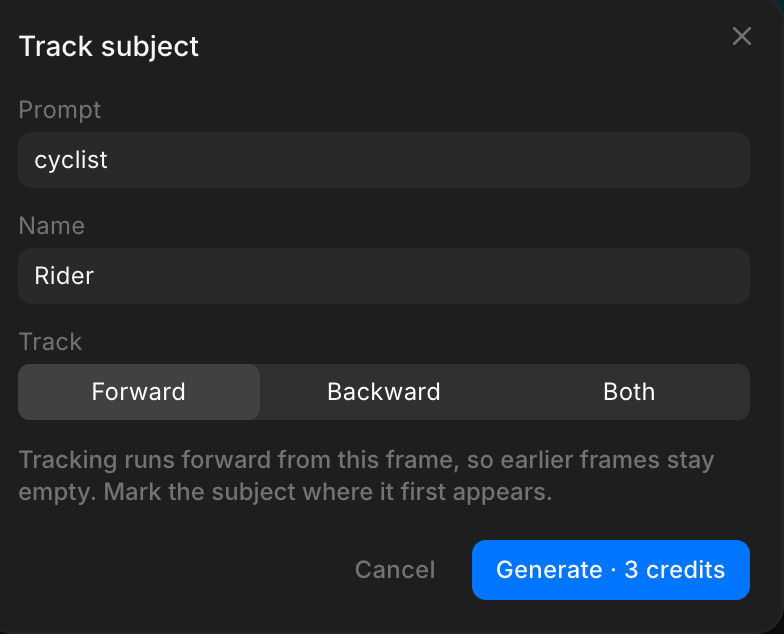
- Click 'Generate'.
Use a box and fill in 'Prompt'. A mask marked with clicks, or with 'Prompt' left empty, can cover only the frame you marked.
The mask appears under 'Masks' after about half a minute, and as a video in 'Assets'. Play the clip to check it.
Marking the subject
- Box: drag around the whole subject. Very small boxes are ignored.
- Clicks: 'Include' adds an area and 'Exclude' leaves one out. Option-click or Alt-click also excludes. Up to 16.
- Use a box or clicks, not both. 'Clear' starts again.
- Marks belong to their frame. Move the playhead and they hide until you return.
'Prompt' is what Compose looks for. It follows one kind of thing, so 'person on a bicycle' keeps the person and drops the bike. To keep both, track the bike as a second mask; masks add together. 'Name' is only the label; left empty, the mask is called 'Mask 1', 'Mask 2' and so on.
Directions
| Direction | Covers | Runs |
|---|---|---|
| 'Forward' | Marked frame to the end. Earlier frames stay empty. | 1 |
| 'Backward' | Start to the marked frame. Not on the first frame. | 1 |
| 'Both' | The whole clip | 2, or 1 from the first frame |
If the subject is in the whole shot, mark the first frame and choose 'Forward'.
Use the mask
Upper lanes cover lower ones, so the masked clip goes on top.
Swap the background
- Track the subject.
- Drag the new background from 'Assets' onto the lane below, under the same stretch of time.
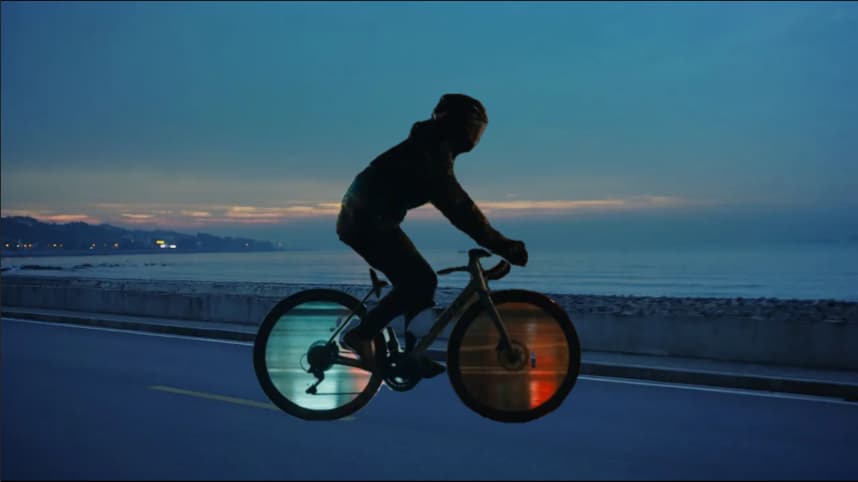
The rider and the bike, tracked as two masks, over a new background on the lane below:
Blur the background
- Track the subject.
- Drag the same clip from 'Assets' onto the lane below, lined up with the masked one.
- Select the lower copy and raise 'Blur' on the 'Effects' tab.
Color pop
Follow the blur steps, but on the lower copy open the 'Color' tab and lower saturation all the way, under 'Presence'.
Hide the subject
Click 'Invert' on the mask card. The lane below shows where the subject was, or black if it is empty. A mask hides; it does not fill the area back in.
Adjust the mask
On the mask's card under 'Masks':
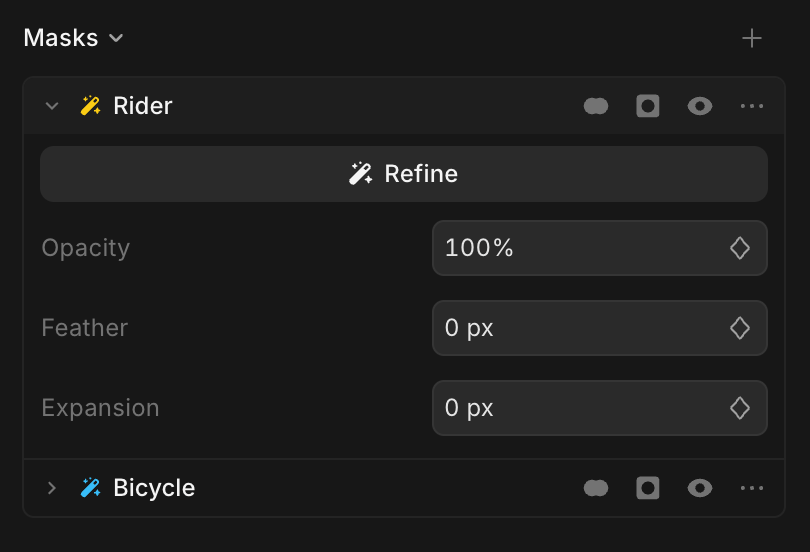
- 'Feather' softens the edge. 'Expansion' grows or shrinks it.
- 'Invert' swaps what shows. 'Hide mask' turns it off for a moment.
- The mode button combines masks. See Masks.
- 'Refine' tracks again with a new 'Prompt' and keeps your settings. It costs a new run.
- Drag the card onto another clip to copy the mask there.
- 'Open matte in source monitor', in the card's menu, shows the black-and-white mask.
To change the box, add a new Track subject.
Make a shape follow a subject
'AI tracking' moves a rectangle or ellipse you drew so it follows the subject. Use it for a blur box over a face or a spotlight.
- Add a 'Rectangle' or 'Ellipse' mask around the subject.
- On its card, click 'AI tracking'.
- In 'What to track', type the subject.
- Choose 'Position', or 'Position + Scale' to resize it too.
- Choose a direction. It tracks from the playhead.
- Click 'Track'.
'Clear tracking' removes the last track.
Using Copilot
Ask in the Compose chat: 'track the cyclist in the first clip and add it as a mask'. Copilot's steps are charged like any Copilot request, alongside the run. A mask Copilot adds cannot be refined; track it again instead.
Credits
Each run is a small, fixed charge. It is the same for a short clip or a long one, and the button shows it before you start.
- 'Forward' and 'Backward' are one run each. 'Both' is two, or one when you mark the first frame.
- 'Refine' and 'AI tracking' are one run per direction.
- A run counts once it starts, whatever it finds, so a clear box and a 'Prompt' get it right the first time.
- A request Compose turns down, such as 'Backward' on the first frame, costs nothing.
Troubleshooting
Mask is blank
'Prompt' was empty, or nothing matched it. Track again with a box and a one-word 'Prompt'.
Mask covers only one frame
The subject was marked with clicks, or tracked 'Forward' from a later frame. Use a box, on the first frame the subject appears.
Part of the subject is missing
Track subject follows one kind of thing. Add a second Track subject for the missing part, such as 'bicycle'; the two masks add together.
Invalid request, please try again later
'Backward' was chosen on the first frame. Choose 'Forward' or 'Both'. No credits were used.
Preview is black while marking
An earlier mask is hiding the picture. Click 'Hide mask' on its card first.
Edges look rough
Masks have hard edges, so hair and motion blur can look jagged. Raise 'Feather' a little, or lower 'Expansion'.
Text will not go behind the subject
Text lanes sit above video lanes, so a text clip cannot go behind a masked subject.
Track subject is missing from the menu
The clip is an image, text, an adjustment layer, or locked. Select a video clip, and turn off 'Lock clip' if it is on.
That's how you use Track subject on Morphic. Reach for it when one person or object needs a different background or look from the rest of the shot.
If you have any trouble or have any questions, feel free to reach out. We're happy to help. Write to us at support@morphic.com.
Movimento e enquadramento
Mova, redimensione, recorte e aplique máscaras a um clipe no quadro, mude a velocidade de reprodução e anime qualquer um desses ajustes ao longo do tempo.
Cor
Faça a correção de cor da imagem no Compose com exposição, balanço de branco, níveis, curvas, rodas de cor e LUTs, adicione efeitos como desfoque e chroma key de tela verde, e combine as tomadas entre si.